GRATIS
The full standings, class by class, with licenses, iRating, pit stops, lap times and the delta to your lap. A FREE plan overlay of Raptor Racing Overlay.
Standings shows the whole session in one table: each class in its color with its drivers in order, everyone's license and iRating, how much iRating each would gain or lose if the race ended like this, which lap they pitted on and how long it took, the gap to the leader and to the car ahead, their best and last lap, the tyre, and the delta to your lap, lap by lap.
On top there is a bar with the session data you pick, one item at a time: session time, track, track time, local time, drivers, SOF, weather and grip. It only reads iRacing data: it never changes anything in the game.
 1
2
3
4
5
6
7
8
9
10
1
2
3
4
5
6
7
8
9
10
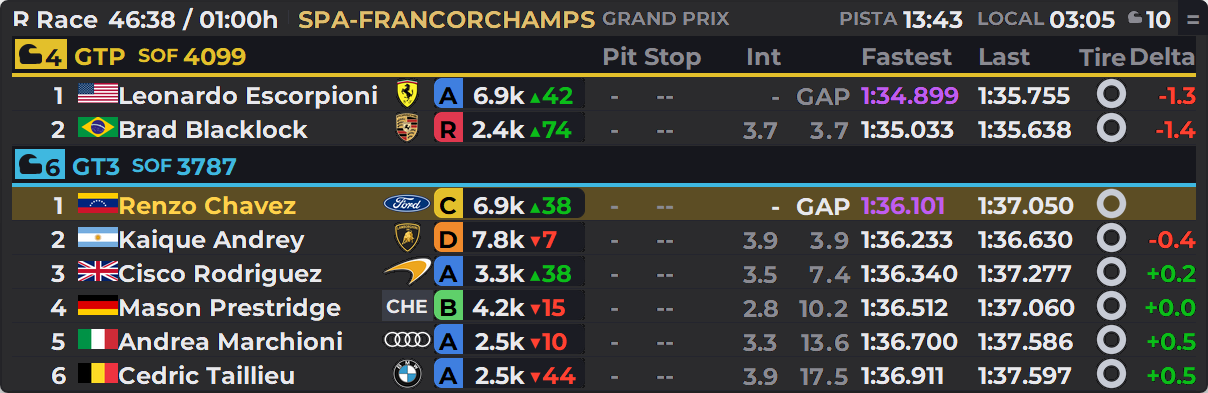
Example with a made-up multiclass race at Spa-Francorchamps. Your row is the one highlighted in gold.
- 1Session and session time: the session letter and name (Practice, Qualy, Race, Warmup or Test), and the clock: time left / total length.
- 2The track: the track name in gold and, next to it, smaller and in gray, the layout.
- 3Track time, local time and drivers: PISTA is the time of day at the track, in the iRacing world; LOCAL, your computer's clock; and the helmet with the number, how many drivers are in the session. Each item in the bar turns on and off on its own: it can also show SOF, temperatures, humidity or grip.
- 4The class header: a pill in the class color with a helmet and how many drivers it has, the class name and its SOF. If cars of that class are in the pits, a note next to it says how many.
- 5Your row: dark gold background and your name in yellow.
- 6License and iRating: the letter in the license color with the Safety Rating, and the iRating. Inside, in green with ▲ or red with ▼, what they would gain or lose if the race ended like this.
- 7Pit Stop: the lap of their last pit entry (in a yellow pill, for example L12) and how long that stop lasted. A dash means they haven't stopped yet.
- 8GAP: the gap to the class leader, in gray. The leader carries the GAP label.
- 9Fastest and Last: best lap and last lap. Purple is the fastest of the class in the session; green is a last lap that is also their personal best.
- 10Delta: how much faster or slower than you their last lap was. Red if faster than you, green if slower.
The top bar, item by item
The session letter and name are always there. Everything else turns on and off one by one: with the right click, under Top bar, or in the settings, LOOKS tab, THE TOP BAR section. Out of the box you get session time, track name, track time, local time and the number of drivers.
- Session time
- Time left and total length of the session, for example 46:38 / 01:00h. In an open practice with no end there is no countdown and it shows --:--. On by default.
- Track name
- The name in gold and the layout next to it, smaller and in gray. If it doesn't fit, the layout is shortened first and then the name, with "…". On by default.
- Track time
- With the PISTA tag: the time of day at the track, in the iRacing world. On by default.
- Local time
- With the LOCAL tag: your computer's clock. On by default.
- Driver count
- A helmet with the number of drivers in the session. On by default.
- SOF
- Strength of field for the whole session, worked out from everyone's iRating. Each class has its own SOF in its header. Off by default.
- Air temperature, track temperature and humidity
- Each one with its icon and no label. Track temperature is the one the crew reports. Off by default.
- Rubber on track
- With the GRIP tag: how rubbered-in the track is in this session, as iRacing reports it: MAX, HIGH, M-HIGH, MED, M-LOW, LOW, SLIGHT, CLEAN or CARRY. If iRacing doesn't say, it shows --. Off by default.
The eight-space limit
The bar has room for eight. Each item takes one space, except session time, track name and grip, which take two each. The defaults use seven.
Once nothing else fits, the rest turn gray in the right-click menu and in the settings, and can't be switched on: to turn one on, turn another off. That way the bar never widens the overlay or covers one item with another.
If the table gets very narrow (for example, with many columns off) and something still doesn't fit, it hides by itself in this order: grip, humidity, air temperature, track temperature, SOF, local time, track time, track name, drivers and session time.
Which drivers show
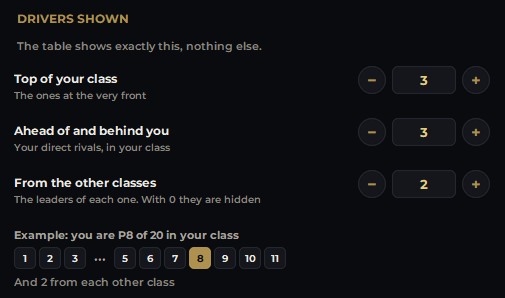
In the settings, THE TABLE tab, DRIVERS SHOWN section, there are three numbers with − and +. The table shows exactly that:
- Top of your class: 0 to 10, or All. 3 by default.
- Ahead of and behind you: 0 to 5 rivals in your class. 3 by default. The ones behind show even if you are among the leaders.
- From the other classes: the leaders of each one, 0 to 5. 2 by default. With 0, those classes are hidden.
Below, an example with the positions you will see. Three little dots mark skipped positions.
- The same three numbers are in the right click, under Drivers shown.
- If you pick a single class with the right click, only that one shows.
- Positions are the same ones iRacing gives.
Big races: no rival gets lost
- No rival disappears from the table or goes blank: you always see their latest data.
- Only a driver who retired stays in gray.
The columns and their colors
Each column turns on and off on its own; turn one off and the table narrows with no hole left. Car number is off by default; all the others are on.
You choose the order too, in the settings, COLUMNS tab: each column has its switch and its arrows.
- Top of the list goes on the left of the overlay.
- The ones that make up a single pill move together: license, iRating and what is gained or lost; and the pit-in lap with the Pit Stop.
- Restore the factory order brings back the usual order without touching what is on.
- The right click turns columns on and off; the order only changes in the settings.
- Your phone and OBS follow the same order.
- Position
- In white. Right next to it, a small number with a tiny triangle: green pointing up if they gained places since the start, red pointing down if they lost them.
- Car number
- In a pill in the class color.
- Flag, driver and car logo
- Round or rectangular flag, set apart from the name as in the Relative; the name in the format you choose (R. Chavez, Renzo Ch., Renzo Chavez or the full name) and the car make. They are three columns: each one turns on and moves on its own.
- License and iRating
- The iRating gained or lost is worked out in the race and in qualifying (against the grid position); in practice it doesn't show. It is an estimate: the final result also depends on incidents and retirements.
- Pit Stop
- The pit-in lap and how long the last stop lasted, in minutes and seconds, for example 01:24. While the car is in the pits, the time runs in gray. Among the rows you see, the fastest stop is green and the slowest red.
- Int
- The interval to the car ahead in the class. Red when they are on the same lap and less than one second apart: they are fighting. The first one shows a dash.
- GAP
- The gap to the class leader, in seconds, or in laps (1 v) if lapped. Gray, and yours in white. GAP and Int are only worked out in the race.
- Fastest and Last
- Best lap and last lap. Purple: the fastest of their class in the session. Green: the last lap is also their personal best. They show even after an off-track or an incident; in qualifying, Fastest is the official one. In LOOKS, LAP TIMES: full (1:51.462, the default) or short (51.4).
- Tire
- The tyre: light gray for dry, blue for wet.
- Delta
- Lap against your lap from the same moment: red if faster than you, green if slower, with its sign. It can compare only the last lap, or the last 2 or 3, one column per lap. Your own row has no delta.
On the right side
- Push to pass / Overtake: a tab to the right of the driver who has it on, with what they have left. Yours goes in the top bar. Only with the cars that have it: Super Formula SF23, IndyCar (Dallara IR18), Indy NXT (Dallara IL-15) and Stock Car Pro.
- Driver flags: each driver's flag, level with their row: black (penalty), repair (black with an orange circle), warning (the furled black flag, slow down) or disqualified.
- Both come on. Turn them off in the settings, THE TABLE tab, ON THE RIGHT SIDE section.
Your league classes
- Your league's own classes (for example Pro and Am) are built in the League Builder, a PRO plan tool.
- In that league's sessions, the Standings uses them on its own: one bar per class, with its name and color, in the order you chose.
- Cars without a class go together at the end, in gray, under UNASSIGNED.
- It comes off: turn it on with Use League Builder, on its screen.
Team races
In endurance mode the team comes first: its name goes on top and the driver at the wheel below, smaller. You can keep both, team only or driver only. By default it turns on by itself in team races (Automatic), and it can also be set to Always or Never.
The tyre becomes a circle with the laps on that set inside. You can show only the current one, or also the previous one and the two previous ones, with the laps they lasted. This can be turned on outside endurance mode too.
Overlay size
- In the settings, LOOKS tab, OVERLAY SIZE section: 100%, 80%, 60% or 50% with one click.
- Or the exact percentage, from 50 to 300%: with the TO YOUR TASTE slider or by typing it in Exact, with − and +.
- It changes the whole overlay: text, columns and graphics.
- You can also stretch it from a corner in move mode (Ctrl+M): it follows the mouse, and the number in the settings updates.
On your phone, on another screen and when spectating
- With the PRO plan, the menu's WIFI CONNECTION shows the same table on your phone or tablet, with the same settings, top bar included. It can also go in the Streaming for OBS.
- Own screen sends the overlay to another screen (the rig's, a tablet, a separate monitor) and fills it edge to edge, with as many drivers as fit. There, right-click works anywhere on the screen, black background included. To leave: Esc, double-click or Leave own screen, the first line of that menu.
- By default it only shows while you drive. You can also have it show in the garage, and in replays and when spectating: there the table centers on the car the camera is showing.
Controls and settings
- On the overlay: the = button in the top right corner opens the same menu as the right click.
- Right click on the overlay: the detected car, Class (All classes or Only one), Columns, Delta laps, Top bar (one switch per item; what no longer fits turns gray), Driver name, Flags, License, Font size, where it shows, Allow moving the overlay, Own screen, Background opacity and Drivers shown (Top of your class, Ahead of and behind you and From the other classes).
- In the Raptor Racing Overlay menu, the Standings settings have three tabs: THE TABLE (DRIVERS SHOWN and ON THE RIGHT SIDE), COLUMNS (which columns show and in what order, endurance mode, the name in team races, tyres and the delta) and LOOKS (OVERLAY SIZE, driver name, THE TOP BAR, the license, lap times, flags, font size from 7 to 14, own screen, background and data opacity, where it shows and seeing it on your phone). The class filter is only in the right click, because classes change with each session.
Tips
- Keep only what you really look at in the bar: in a long race the track time tells you how long until nightfall; in a short one, the session time is enough.
- If you want the grip, first turn off two one-space items, such as local time and track time: grip takes two.
- On a small screen, turn off the columns you don't use: the table narrows with no gaps.
- In the race, watch the Int column: in red, that car is less than a second from the one ahead.
- In endurance, pick And the previous one for the tyres to see how long each car's previous set lasted.