
LIVE FOR iRACING 28 OVERLAYS VERSION 6.95 7-DAY PRO TRIAL →
Raptor Racing

Manage your subscription

Sign in with the email you bought with to see your plan, change it or cancel it.

Go to my subscription

Your membership doesn't show up? Email us at contacto@raptoracing.cl and we'll sort it out.

Lost your license?

Type the email you used and we'll send it again to that address.

Download the free version

We'll create your key right now and also email it to you.

← All the manuals

League Builder manual

PRO

Your league classes, with their name, color and order. The Standings and the Relative use them on their own in that league's sessions. A PRO plan tool of Raptor Racing Overlay.
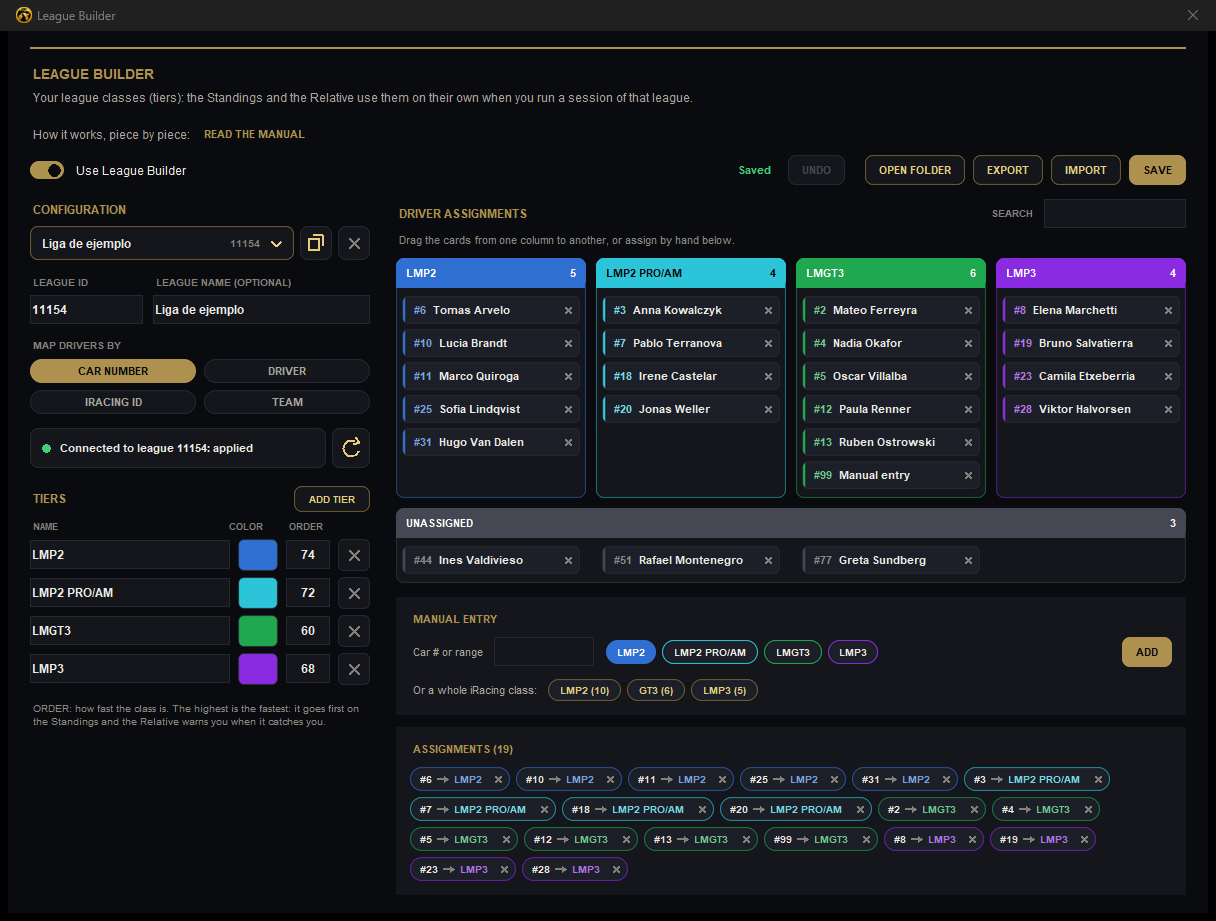
League Builder 1 2 3 4 5 6 7 8 9 10

An example league with four classes and their drivers.

  1. 1Use League Builder: turns the tool on and off. It comes off.
  2. 2The configuration: one per league. Next to it, duplicate and delete.
  3. 3LEAGUE ID: your league number in iRacing. It tells which sessions it is used in. The name is optional.
  4. 4Map drivers by: car number, driver, iRacing ID or team.
  5. 5The connection: whether the open session belongs to that league. The button next to it brings the session cars.
  6. 6The tiers: your league classes, with name, color and order. The highest order is the fastest class.
  7. 7Driver assignments: one column per class. Drag each card to its own.
  8. 8UNASSIGNED: the cars that don't have a class yet.
  9. 9Manual entry: by number or range (10-20), or a whole iRacing class at once.
  10. 10EXPORT and IMPORT: to share the league with its drivers.

Where it is

  • In the menu, TOOLS group: League Builder and OPEN THE LEAGUE BUILDER.
  • It is part of the PRO plan.
  • It comes off: turn it on with Use League Builder, at the top left.
  • If you already had Pro/Am classes, they show up here: enter your league number and click SAVE.

In the Standings and the Relative

  • In your league sessions, each driver goes in the class you gave them, with its color.
  • The Standings builds one bar per class, in the order you chose.
  • Cars without a class go together at the end, in gray, under UNASSIGNED.
  • The Relative paints each row in its class color and warns you when a faster class catches you.
  • Outside that league, everything looks as always.

The buttons at the top

UNDO
Takes back the last change.
OPEN FOLDER
The folder where your leagues are saved.
EXPORT / IMPORT
Saves the league to a file to share it, or loads the one you were given.
SAVE
Saves the changes. The overlays use what is saved.