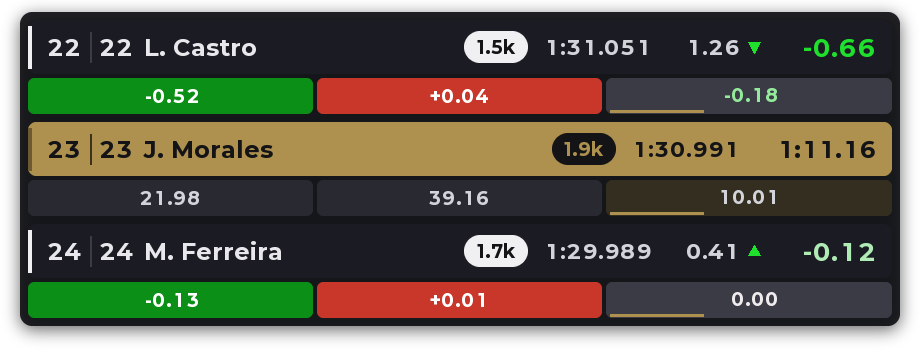
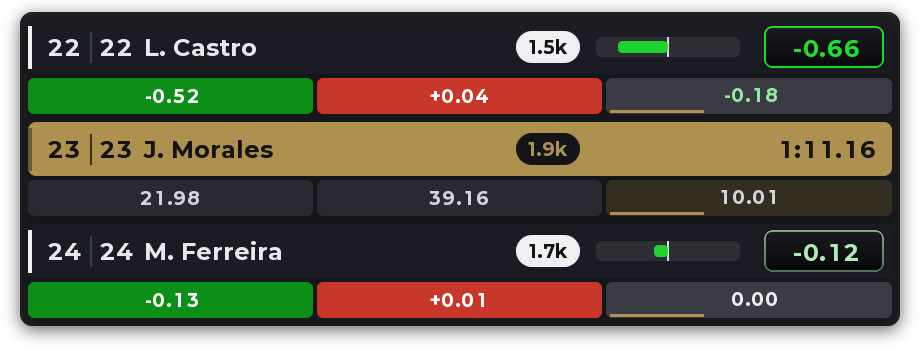
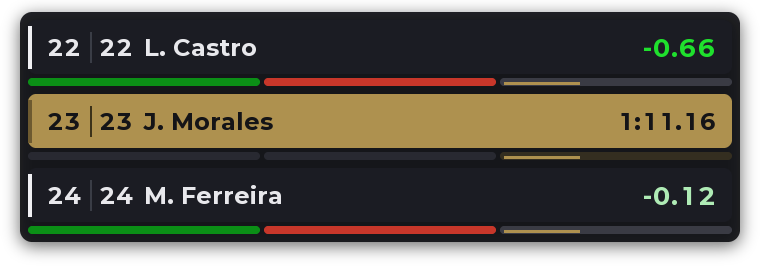
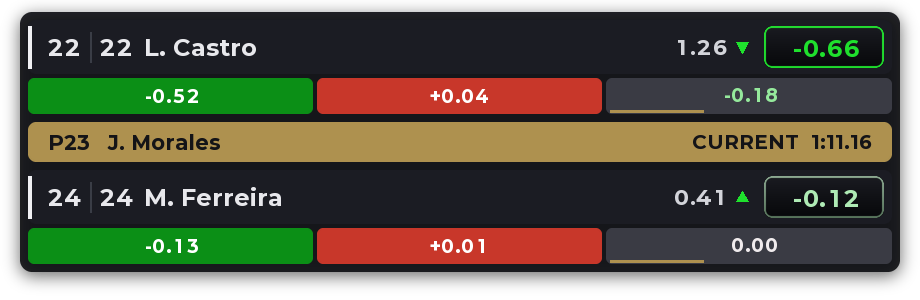
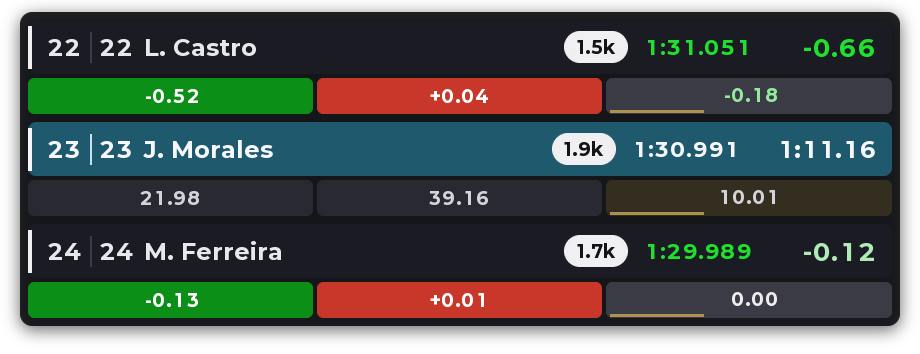
Your lap live against the car ahead and the car behind in your class, with each sector in green or red. A PRO plan overlay of Raptor Racing Overlay.
12345678910
The Classic style, the default one, with made-up drivers: you are gaining on the car ahead and on the car behind.
1The car ahead: overall position, class position and name.
2iRating, in thousands.
3Their last lap.
4The live delta: what you gain (green) or lose (red) on this lap, so far.
5Each sector: green if you gained in that sector, red if you lost.
6The current sector: the gold line shows how far into it you are.
7Your row, in the middle: your position, your name, your iRating and your last lap.
8Your time so far on this lap.
9Your time in each sector.
10The car behind, with the same as the car ahead.
What it means
The car ahead is on top and the car behind below, always in your class.
Green: you gain. Red: you lose.
The interval (in the Gold and Combined styles): the seconds between you, with an arrow that shows whether it grows or shrinks.
A dash: there is nothing to compare yet.
With nobody on one side, that row says First in class or Last in class.
The five styles
Pick one in the settings, STYLE section (one click picks it), or right-click, Style.
1. Classic (default)Position, iRating, last lap and the delta; your row in blue.
2. GoldYour row in gold, and the interval with its arrow.
3. With barA green or red bar and the delta in its capsule.
4. CompactJust the name and the delta; thin sectors.
5. CombinedYour row as a gold line; interval and capsule.
Where it shows
In the menu, with the PRO overlays: LIVE BATTLE.
While you drive. Also in the garage, and in replays and when spectating, if you ask for it in WHERE IT SHOWS: there it is the battle of the car the camera shows.
With the PRO plan, also on your phone or tablet (WIFI CONNECTION), in OBS (STREAMING) and in VR.
Controls and settings
Right-click on the overlay: Style, Overlay size (Bigger, Smaller, or 75 to 200%), Also show it in the garage, Also show it in replays and when spectating, Allow moving the overlay, Background opacity and Close the live battle.
In the Raptor Racing Overlay menu: STYLE, AGAINST WHOM, SIZE (75, 100, 125, 150 or 200%), BACKGROUND OPACITY, DATA OPACITY, Allow moving the overlay by dragging it, WHERE IT SHOWS and SEE IT ON YOUR PHONE.
Moving it: with Allow moving the overlay you drag it; in move mode (Ctrl+M) you resize it from a corner.

 1
2
3
4
5
6
7
8
9
10
1
2
3
4
5
6
7
8
9
10