Sign in with the email you bought with to see your plan, change it or cancel it.
Your membership doesn't show up? Email us at contacto@raptoracing.cl and we'll sort it out.
Type the email you used and we'll send it again to that address.
We'll create your key right now and also email it to you.
Something went wrong. Try again, or email us at contacto@raptoracing.cl
We also emailed it to you.
1. Install it and open it. 2. Paste your key. 3. Open iRacing.
You already have a key with this email. It's in your inbox, or you can get it sent again from Recover license.
We use Meta cookies to measure our ads. Privacy
Your key is on its way to your email. If it doesn't arrive in a few minutes, email us at contacto@raptoracing.cl.
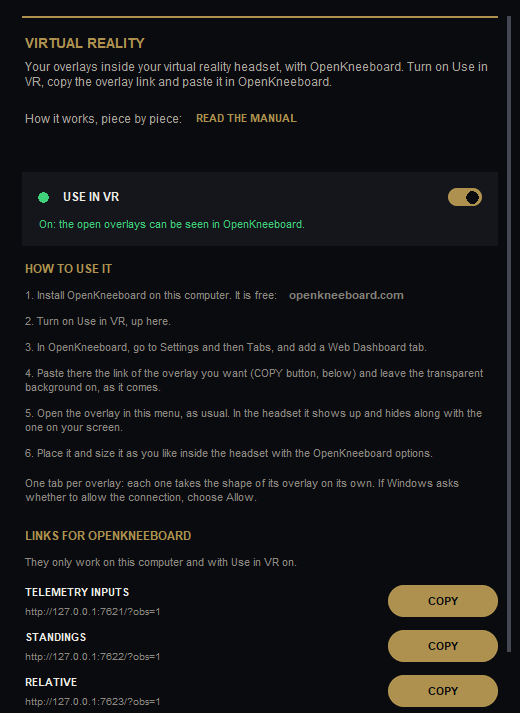
Your Raptor Racing overlays inside your virtual reality headset, with OpenKneeboard. A PRO plan tool of Raptor Racing Overlay.
The VR (VIRTUAL REALITY) screen in the menu.

 1
2
3
4
5
1
2
3
4
5