
iRacing gives you a lot of information, but it is spread across boxes you have to open with the car moving. An overlay keeps what matters always in view, at the edge of the screen. The question is which ones to run without cluttering your screen. Here is our list, from the essentials to the ones that pay off once you race regularly.
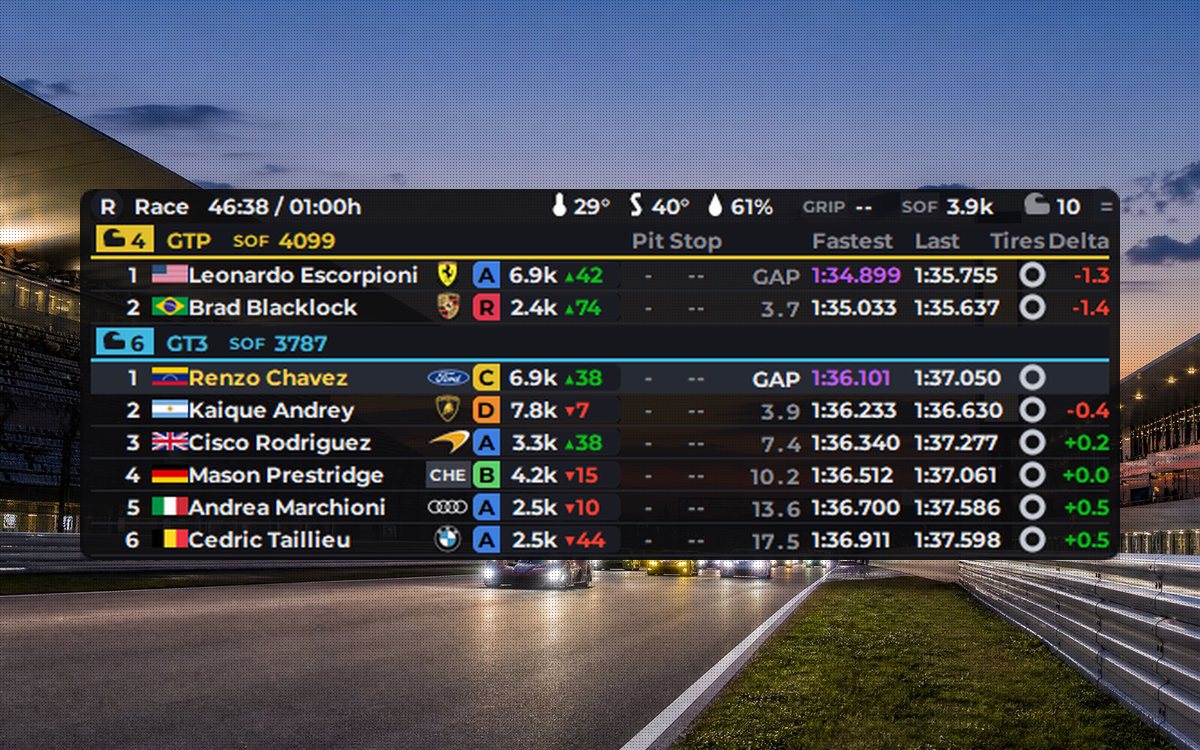
1. Relative: the one that matters most in a race
It shows the cars right ahead of and behind you on track, not in the standings, with the exact gap in seconds. It tells you whether the car behind is closing in, whether the one ahead is within reach, or whether a faster car from another class is coming.
Make sure it marks lapped cars: in RaptoRacing Overlay the car about to lap you shows in red and the one you already lapped in blue, so you don't fight for a position that doesn't exist.
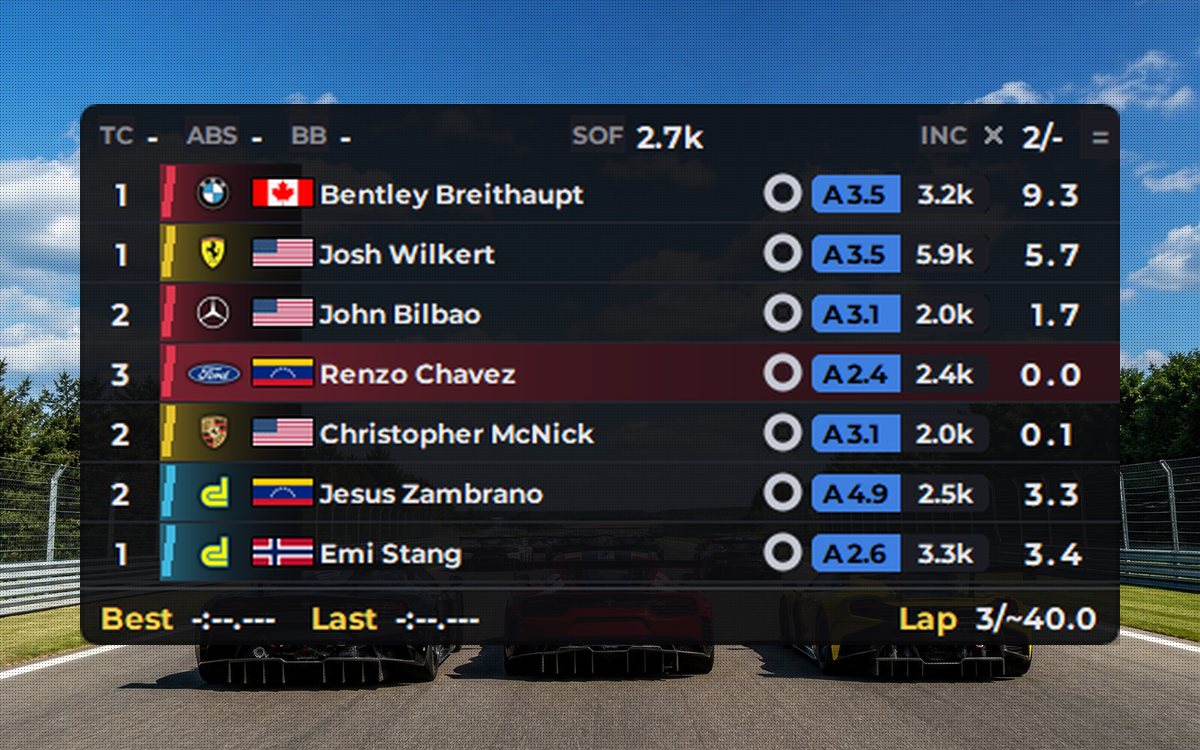
2. Standings: the whole race and your iRating
The leaderboard for the entire race. In iRacing it adds something the sim doesn't show you live: how much iRating you gain or lose if you finish in your current position. Plus each driver's license and Safety Rating, the SOF, best laps and pit stops.
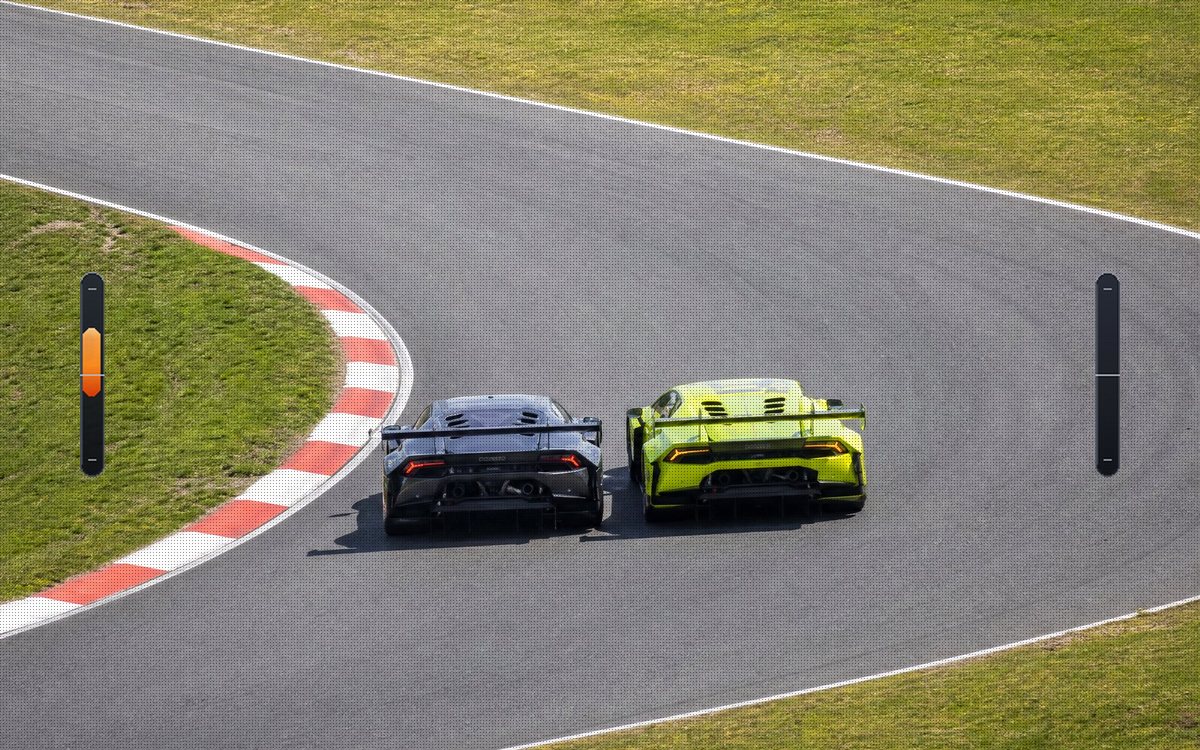
3. Spotter: who is alongside you
The voice spotter says "car left", but not how far. Spotter bars on the sides of the screen show exactly how much of the other car overlaps yours: that's the difference between closing the door and making contact on corner entry.
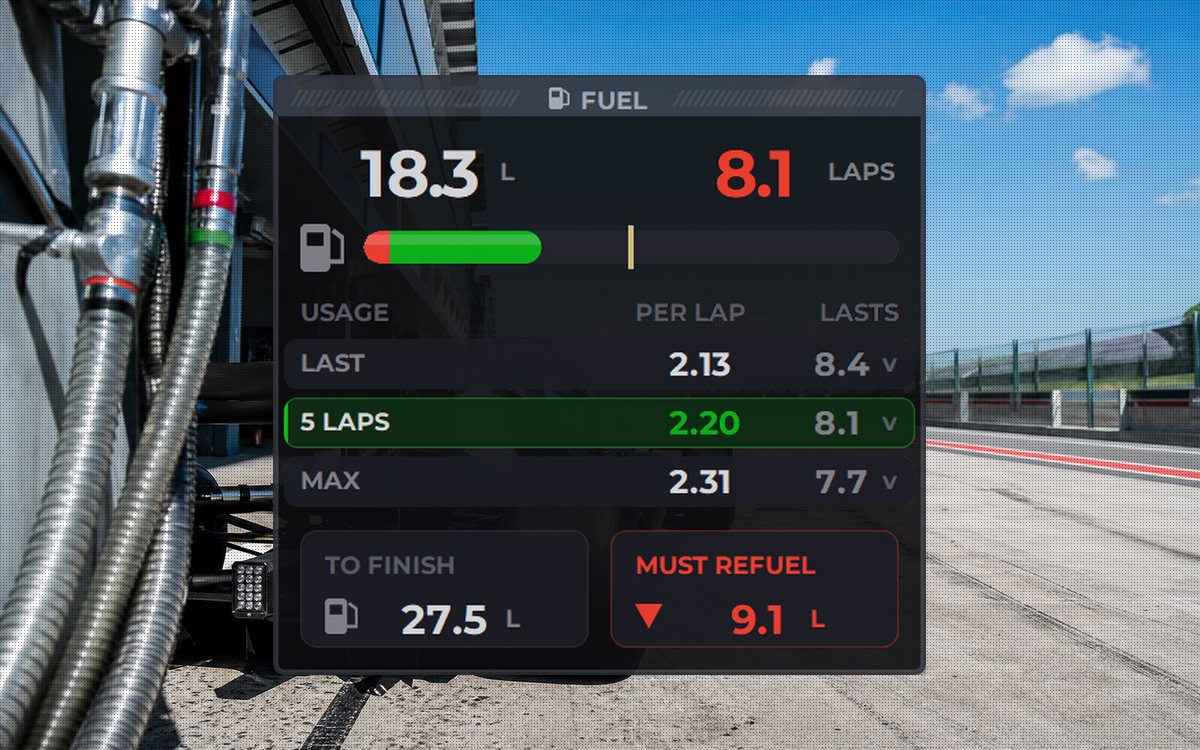
4. Fuel: so you don't run dry on the last lap
A fuel calculator tells you how much you burn per lap, how many laps the tank lasts and how much to add to finish. In races longer than half an hour it is a must, and a start alert warns you if you left with too little fuel.
5. Inputs: to improve your driving
Inputs draw your throttle, brake and steering live. They won't gain you a position by themselves, but they teach you to brake harder at the start and get on the throttle more smoothly on exit, which is where the lap time is.
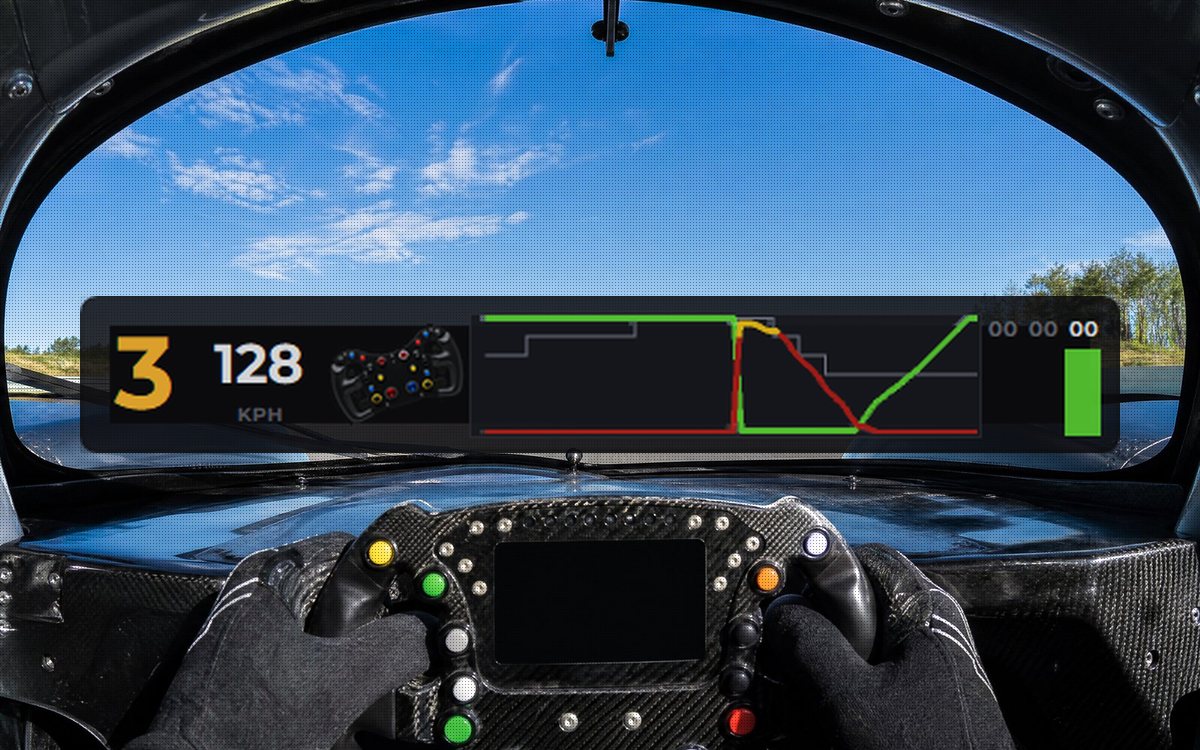
6. ABS and traction loss lights
Two small indicators that light up when ABS kicks in or when the wheels spin, even in cars without traction control. They tell you whether you are braking at the limit or getting on the power too early.
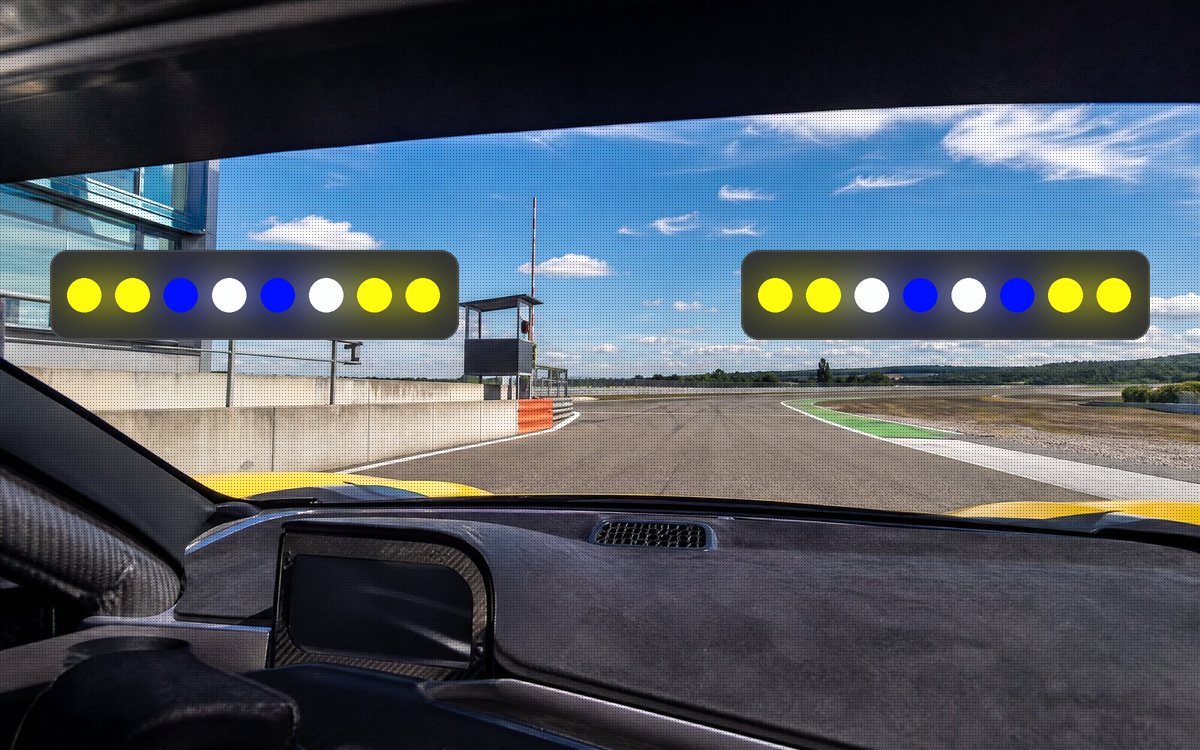
7. LED Bars: alerts without looking away
Two light bars at the top of the screen that warn you with colors: flags, pit limiter, a car alongside, ABS, traction loss and shift points. Since they sit at the edge of your vision, you never take your eyes off the track.
How to set up your screen
- To get started: Relative, Standings and spotter. With those three you already race much better.
- Long races: add fuel and the low fuel alert.
- To improve lap times: add inputs and the ABS and traction lights.
- Keep them at the edges, away from the center: your eyes need to go back to the track, not stay reading.
The first three, plus track re-entry and the two lights, come in RaptoRacing Overlay's free-for-life plan. We show you how to install it in the guide free iRacing overlay step by step.
Related guides: Free iRacing overlay: step-by-step install · Are overlays allowed in iRacing? · RaptoRacing iRacing overlay