When you go off track or come to a stop, it tells you with a color and a number how many seconds until the car behind reaches you. A FREE plan overlay of Raptor Racing Overlay.
You ended up in the gravel or sideways after a spin, and there's only one question: do I go now or wait? The Rejoin Helper answers it with a colored badge that tells you what to do (Yield, Care or Clear) and the seconds until the nearest car behind you gets to you.
It shows up on its own when it's needed and goes away on its own when you're rolling again: the rest of the time it takes up no space on screen. It only reads iRacing data and never changes anything in the sim.
1234
Example: the car behind arrives in 1.3 seconds, so don't rejoin.
1Yield, Care or Clear: what to do. It changes in three steps with the seconds left.
2The color: from red when the car is right on you, through orange and yellow, to green when there's time to spare. Here, at 1.3 seconds, it's already yellow.
3The seconds: how long until the car behind reaches you, always with one decimal. If nobody is coming within the next 30 seconds, there's no number.
4The black frame: it lifts the badge off any background, so you can read it at a glance over grass or gravel.
The badge at each moment
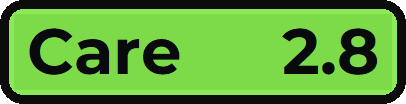
These photos come from one single pass, with the default limits: you're stopped off track and a car is coming from behind. The word changes at the limits (Clear, Care, Yield) and the number goes down a tenth at a time as the other car arrives. The color doesn't jump: it slides from green to red as the seconds run out.
ClearNobody is coming within 30 seconds: the badge is green, says Clear and has no number. Rejoin without worrying.
Clear, with a numberSomeone is coming, but they're 3.5 seconds or more away: it stays green and says Clear, and the number tells you in how many seconds they arrive. You have plenty of time to rejoin.
CareThe car behind arrives in less than 3.5 seconds, but in 1.5 or more. You can rejoin, but without cutting across its line: let it by. The color has left green and is heading toward yellow.
YieldIt arrives in less than 1.5 seconds: don't rejoin, it's right on you. The color goes from orange to red, and it gets redder the closer the car is.
When it shows up
The badge shows up in the two moments when you have to decide whether to rejoin: when you're off track and when you're almost stopped, below 2 meters per second (about 7 km/h), like after a spin.
When you're rolling again, it stays another second and a half before it goes, so it doesn't flicker off and on in your face just as you accelerate back on.
It doesn't show in your pit stall or on the way into the pits.
It only shows while driving: in the garage, in the menus or watching a replay it hides, unless you check that it should show there too.
If you'd rather always have it visible while driving, turn on «Keep it visible even when it isn't needed».
Where the number comes from
The overlay finds the nearest car coming behind you on track and works out how many seconds it takes to get to where you are. The speed it's closing in at is measured live, by watching how far that car moves every second, and the lap average isn't used: on a straight a car goes much faster than its average, and that changes the math. In the very first instant, before it can measure it, it uses the estimated lap time iRacing provides.
The number always has one decimal and the decimal point stays in place, so it doesn't jump when it goes from 9.9 to 10.0.
Any car coming from behind counts, also one you're lapping or one lapping you: what matters is that it's coming.
The safety car, cars on pit road and cars that aren't on track don't count.
If the nearest one is more than 30 seconds away, no number is shown and the badge says Clear.
The three states
The word changes in three steps, with two limits you can move. The color, on the other hand, doesn't jump: it slides little by little with the seconds, from red to green, and reaches green right at the Care limit.
Yield
Less than 1.5 seconds (factory default). Don't rejoin: the car is right on you.
Care
Between 1.5 and 3.5 seconds (factory default). You can rejoin, but let it by.
Clear
3.5 seconds or more, or nobody close. Rejoin without worrying.
The limits, tailored to your car
The red limit isn't the moment you get hit: it's how long you take to get out of the gravel, cross and pick up speed, because the other car keeps coming the whole time. That's why it depends on the car you drive and on how fast the traffic in your class is.
In the settings, the red limit goes from 1 to 15 seconds and the orange one from 1.5 to 25, in half-second steps. Orange always stays at least half a second above red: if you push one against the other, the other moves on its own.
Testing it and placing it
Since it's almost never on screen, it has a button to see it without going into the gravel on purpose: «Test the badge (9 s)», in the right-click menu. For 9 seconds it runs through the three states, one after the other, with your limits.
While you place it with the menu's move mode, or while its menu or the opacity window is open, it also stays visible.
Size: from 50% to 200%; the factory default is 60%. «Bigger» and «Smaller» change it in 5% steps.
Opacity: there's no panel here, so it dims the whole badge. Factory default, 95%.
On your phone and in OBS
With the PRO plan's WiFi connection or Streaming, the same badge shows on your phone, on a tablet or as a source in OBS, with the same color, word and number. It hides just like on screen: in OBS the box stays empty, and on the phone it says «This overlay shows up on its own when it is needed.».
The «See it on my phone or tablet» switch in its settings comes on; turning it off only takes this overlay off the list.
Controls and settings
On the overlay: it has no buttons. If you turn on «Allow moving the overlay», you can drag it wherever you want.
Right-click on the overlay: «Overlay size» (Bigger, Smaller and 50% to 200%), «Keep it visible even when it isn't needed», «Also show it in the garage», «Also show it in replays», «Allow moving the overlay», «Badge opacity», «Test the badge (9 s)» and «Close the rejoin helper».
In the Raptor Racing Overlay menu, the Rejoin Helper settings are a single page with no tabs: DON'T REJOIN BELOW (RED) and REJOIN YIELDING BELOW (ORANGE), with their SECONDS; SIZE; WHEN IT ISN'T NEEDED («Keep it visible, instead of hiding it»); BADGE OPACITY; «Allow moving the overlay by dragging it»; WHERE IT SHOWS (Garage and Replays); SEE IT ON YOUR PHONE; and the «Restore factory settings» link, which doesn't move the badge.
Tips
Tune the red limit to your car: if it's slow to get going from the gravel or your class is very fast, raise it.
Before the race, use «Test the badge» to place it where you see it without taking your eyes off the track.
Read the color at a glance; the number helps you decide when you're close to a limit.
On Care, rejoin without crossing the incoming car's line and let it by.
Remember that lapped cars count too: if someone is coming, they're coming.

 1
2
3
4
1
2
3
4