PRO
Your race engineer by voice: it calls out cars alongside, fuel, gaps, flags and much more. A tool of the Raptor Racing Overlay PRO plan.
It only reads iRacing: it never changes anything in your car.
 123456789
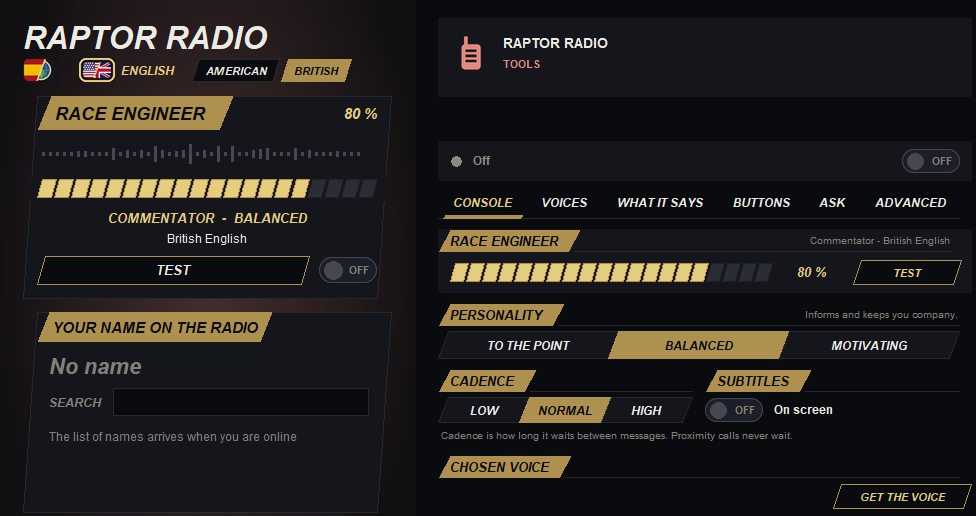
Raptor Radio in the menu.
-
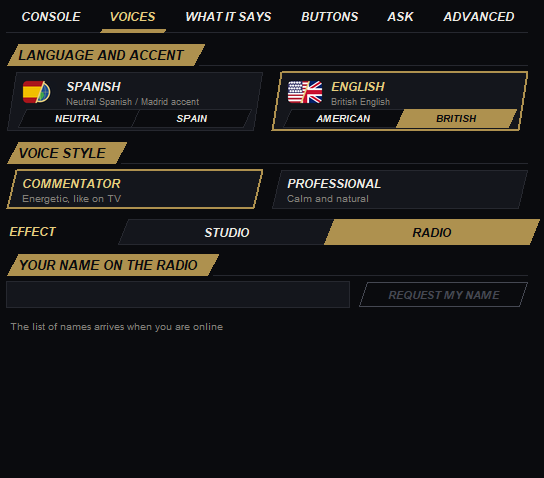
1LANGUAGE AND ACCENT: Spanish (neutral or Spain), English (American or British), Brazilian Portuguese or German.
-
2RACE ENGINEER: the radio volume.
-
3The chosen voice: the style and the personality.
-
4TEST and the switch: you hear a sample and turn the radio on or off.
-
5YOUR NAME ON THE RADIO: what the engineer calls you.
-
6The status: off, waiting for iRacing or listening to the race.
-
7The tabs: CONSOLE, VOICES, WHAT IT SAYS, BUTTONS, ASK and ADVANCED.
-
8CADENCE: how long it waits between messages.
-
9SUBTITLES: what it says, written on screen.
Where it is
- In the menu, TOOLS tab: RAPTOR RADIO. It is part of the PRO plan.
- The first time, WELCOME TO RAPTOR RADIO guides you in 4 steps: language, name, what to hear and buttons. SKIP leaves it for later.
- The voice downloads only once, with GET THE VOICE.
The voices
Ten voices: Spanish and English, each accent as a commentator or a professional; Brazilian Portuguese and German, as a professional.
- SPANISH
- NEUTRAL or SPAIN (Madrid accent).
- ENGLISH
- AMERICAN or BRITISH.
- PORTUGUESE
- BRAZILIAN (Brazilian Portuguese).
- GERMAN
- STANDARD (standard German).
- COMMENTATOR
- Energetic, like on TV.
- PROFESSIONAL
- Calm and natural. The default.
- EFFECT
- STUDIO, the clean voice, or RADIO, like the team radio.
Your name on the radio
- Find your name and tap it. LISTEN lets you hear it.
- The engineer calls you by your name only a few times: start, pit stop and finish.
- If it isn't there, REQUEST MY NAME. We'll let you know in the app when it's ready.
- Your name is recorded with the voice you have selected. If you change voice, it is requested only for the new one.
- It works with every voice, Brazilian Portuguese and German included.
- Without your name, the radio still talks.
How it talks
On the CONSOLE tab:
- PERSONALITY
- TO THE POINT: just the facts, short and sharp. BALANCED: informs and keeps you company. MOTIVATING: adds a short cheer when you do something well.
- CADENCE
- LOW, NORMAL or HIGH: how long it waits between messages. Proximity calls never wait.
- RACE ENGINEER
- The volume, with TEST to hear it.
What it says
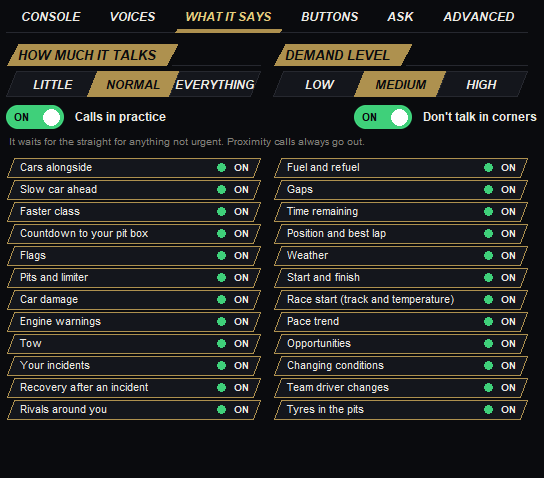
- HOW MUCH IT TALKS
- LITTLE: only what needs a reaction. NORMAL: the usual. EVERYTHING: the lap by lap reports too.
- DEMAND LEVEL
- LOW: only big changes in time and pace. HIGH: the fine ones too.
- Calls in practice
- It also talks in practice sessions.
- Don't talk in corners
- Anything not urgent waits for the straight.
Each topic can be turned on or off. All of them come on, except Fuel strategy:
- On track: cars alongside, slow car ahead, faster class, flags, pits and limiter, countdown to your pit box, car damage, engine warnings, tow and dirty track ahead.
- The race: fuel and refuel, gaps, time remaining, position and best lap, your incidents, weather, start and finish, race start (track and temperature).
- More: recovery after an incident, pace trend, opportunities, rivals around you, changing conditions, team driver changes and tyres in the pits.
- Fuel strategy (comes off): it tells you if saving a little gets you one more lap or to the end, and if you are using more than usual.
- Gap to leader: at 35 % and 85 % of the race, how far ahead your class leader is and the pace they are lapping at. If you are leading, the car in second.
During the race
- Formation lap: which car to line up behind ("line up behind car number 23") and to close up if you drop back.
- Safety car: "get ready, the safety car is in the pits".
- Countdown to your pit box: it ends with "stop", the moment to start braking to stop on your box. Adjust it in ADVANCED, PIT BOX CALL.
- "Go, go, go!": you can leave your pit box.
- Qualifying: with the green it announces your first lap is open, and with the white the second one, with a word of encouragement. When the session ends, it tells you the result with your final position.
- Dirty track ahead: only with iRacing's dirty track flag.
- Cars alongside: "Car right" or "Car left". While a car is alongside, it only talks about that.
- Gaps: the seconds to the car ahead and the car behind are the same ones the Relative shows.
- In multiclass races: the position it tells you is your class position.
- With a league active: position, gaps and leader follow your league class, like the Standings.
- "Car behind is attacking, defend": when the car behind is less than half a second away and closing in.
- Fuel: if it's enough, it says so once.
- "Let him by and follow him through": only with a car from another, faster class, never one from your class or the pace car.
- Much faster car: several lines that take turns, for example "faster car coming, let him through and take the tow".
- "Blue flag, let them by": only when the car coming from behind is from your class.
- At the end: it congratulates you or asks you to improve, depending on how it went. With the MOTIVATING personality, it congratulates you if you gained places and encourages you if you lost some.
- After the checkered flag: it tells you once to find a place to park.
Wheel buttons
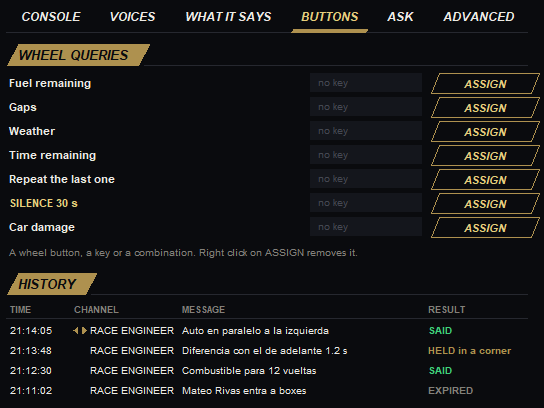
- WHEEL QUERIES: one button per question. Fuel remaining, Gaps, Weather, Time remaining, Car damage, Repeat the last one and SILENCE 30 s.
- ASSIGN: a wheel button, a key or a combination. Right click on ASSIGN removes it.
- They are also in SHORTCUTS.
The history
HISTORY, on the BUTTONS tab: the latest messages, with the time and the result.
- SAID
- It said it.
- HELD
- It held it: in a corner, on silence or by the cadence.
- CUT OFF and REPLACED
- A proximity call or newer data took its place.
- EXPIRED
- It was no longer useful.
- SILENCED
- With SILENCE 30 s.
In the ADVANCED view, LATEST MESSAGES also shows in the center.
Ask it by voice
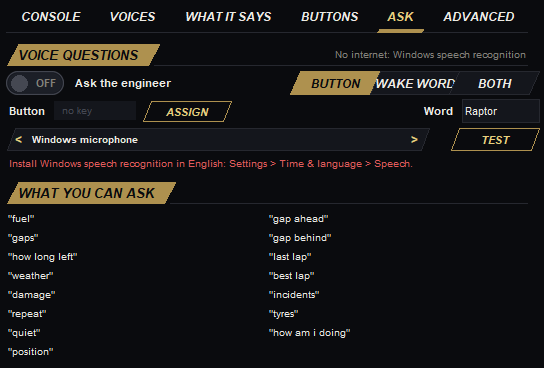
VOICE QUESTIONS, on the ASK tab: you talk to the engineer and it answers. Turn it on with Ask the engineer.
- BUTTON
- Hold the button, ask and release.
- WAKE WORD
- Say the word and the question. You choose the word: 1 to 3 words. By default, “Raptor”.
- BOTH
- With the button or with the word.
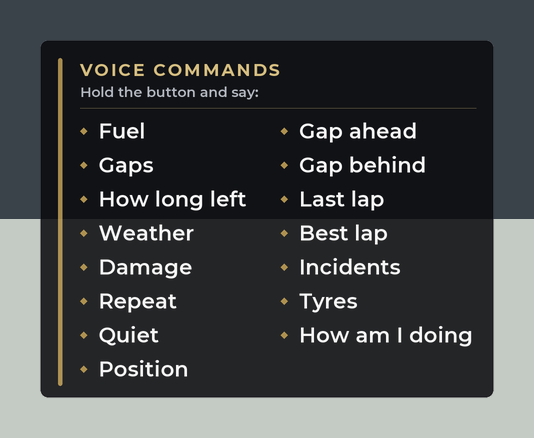
- WHAT YOU CAN ASK: the list of phrases. For example, “how much fuel”, “what position am I” or “how am I doing”.
- Show the list on screen: that same list over the game, in two columns and with large text, in the language of the engineer's voice. Off by default. Size: SMALL, MEDIUM or LARGE. Move it with Ctrl+M.
- You speak to it in the language of the chosen voice: Spanish, English, Portuguese or German.
- It uses Windows speech recognition for that language: it works without internet.
- The microphone: the Windows one or another. TEST shows what it understood.
- With WAKE WORD, the microphone stays on during the session. Everything is processed on your PC: nothing is recorded or sent.
- If Windows doesn't have speech recognition for that language, the app tells you which one to add. Add it in Settings > Time & language > Language & region > Add a language, with Speech recognition.
- For the Portuguese voice you need Portuguese (Brazil), even if Windows is in European Portuguese.
The list of voice commands over the game.
Subtitles
- What the engineer says, written over the game.
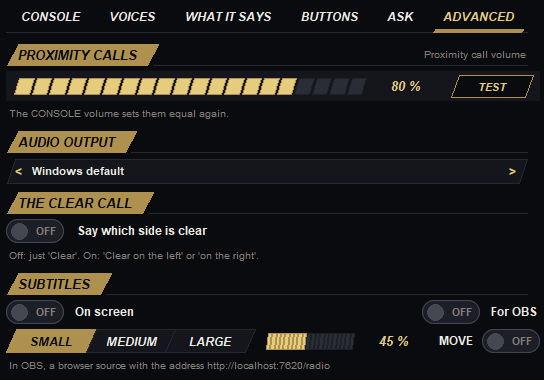
- On screen: on the CONSOLE or in ADVANCED.
- SMALL, MEDIUM or LARGE, and the plate opacity.
- MOVE (or Ctrl+M): put them wherever you want and they stay there.
- For OBS: turn them on from Streaming, or use a browser source with the address the app shows.
Raptor Radio in OBS
- The radio also comes through the Streaming link: with Control audio via OBS ticked on that source, nothing else is needed.
- If you prefer a separate audio source: Application Audio Capture and the window [RaptoRacing Overlay.exe]: Raptor Racing Audio. All the app's sound comes out there: the radio, the voice and the chat alert.
- Use only one of the two: with the Streaming link plus a source that captures the radio, you hear it twice.
- All the app sounds through this output, in ADVANCED, below AUDIO OUTPUT. It comes on.
Advanced
- PROXIMITY CALLS
- The volume of the cars-alongside calls, on its own. The CONSOLE volume sets them equal again.
- PIT BOX CALL
- EARLIER, DEFAULT or LATER: when it says "stop" in the countdown to your pit box.
- AUDIO OUTPUT
- Where it plays: the Windows default or another.
- THE CLEAR CALL
- Just “Clear”, or “Clear on the left” or “on the right”.
- DOWNLOADED VOICES
- The voices you already have on this PC.
- Back to factory settings
- Leaves everything as it came.