PRO
Your phone or tablet as a button deck: each button is a key on your computer. A PRO plan tool of Raptor Racing Overlay.
 123456789
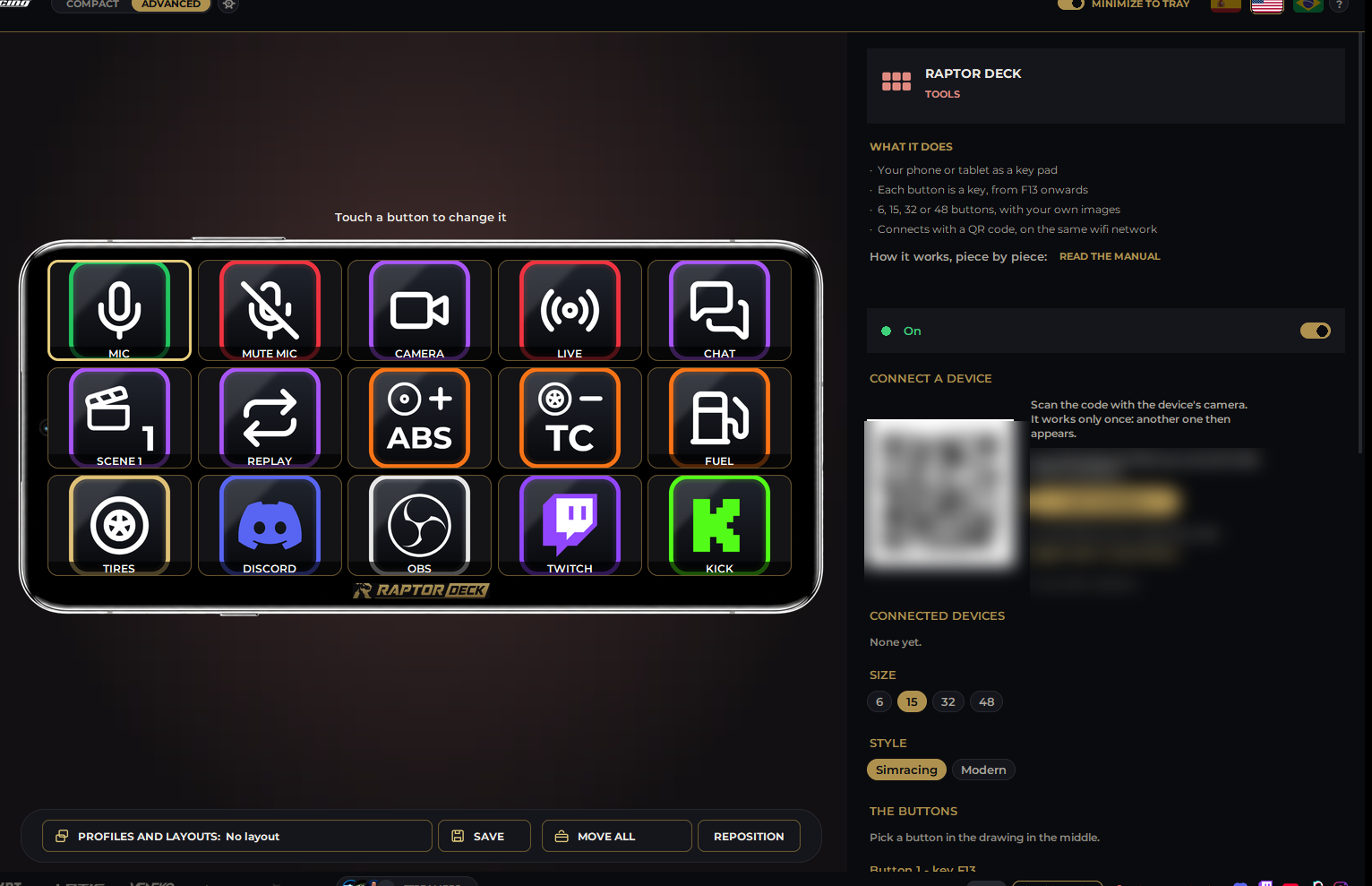
The Raptor Deck screen in the menu.
- 1The buttons: how they look on the phone. Touch one to change it.
- 2The logo: at the bottom strip of the deck. Next to it, the connection light.
- 3The switch: turns Raptor Deck on. It comes off.
- 4The QR code: connects a device. It works only once.
- 5The written code: for the iPhone icon, if it asks for it.
- 6CONNECTED DEVICES: the ones that can use it. REMOVE disconnects one.
- 7SIZE: 6 or 15 buttons on a phone, 32 or 48 on a tablet.
- 8STYLE: Simracing or Modern. It changes how all the buttons look.
- 9COPY ADDRESS: copies the address to paste it on another device.
Where it is
- In the menu, TOOLS group: RAPTOR DECK.
- It is part of the PRO plan.
How to connect
- Turn Raptor Deck on.
- Put the phone or tablet on the same wifi network as the computer.
- Scan the QR code with the camera.
- If Windows asks, choose Private networks and Allow.
Full screen
- Android, tablet or computer: when it opens, tap FULL SCREEN.
- iPhone: it runs from its own icon. The page shows the steps: Share, Add to Home Screen and open it from the new icon.
- If the icon asks for a code, type the one next to the QR.
Each button
- The key
- It goes by position: F13 onward, then with Ctrl, Shift or Alt.
- Button name
- The text under the button.
- UPLOAD IMAGE
- Your own image: it fills the whole button. Best is a square 256 x 256 PNG.
- GALLERY
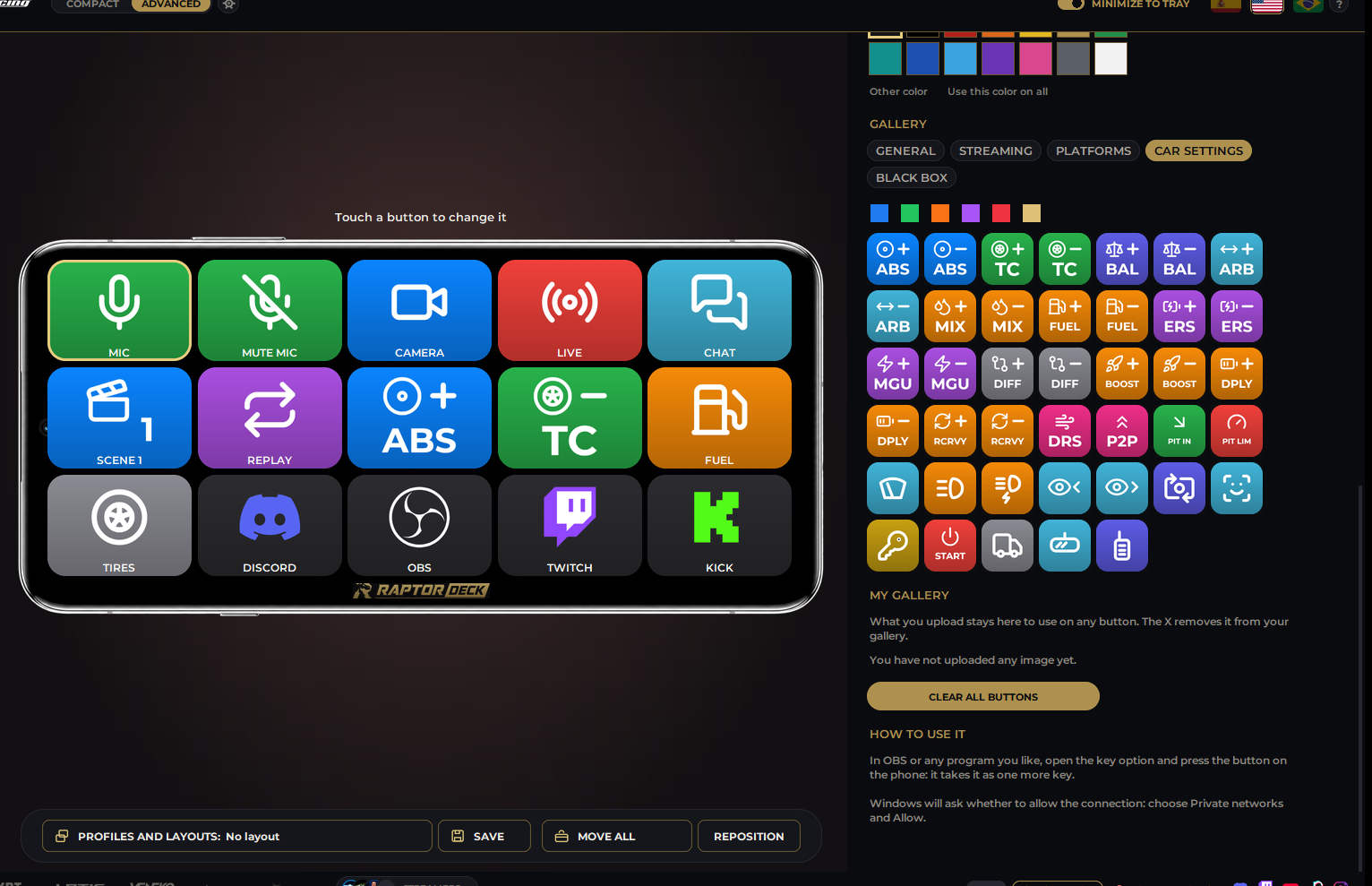
- The program's icons by group: GENERAL, STREAMING, PLATFORMS, CAR SETTINGS and BLACK BOX, in six colors.
- MY GALLERY
- What you upload stays here to use on any button. The X removes it.
- Show the titles
- One switch: shows or hides them on every button with an image.
- CLEAR ALL BUTTONS
- Leaves the buttons empty, after you confirm. It does not delete MY GALLERY.
- BACKGROUND COLOR
- A palette, Other color and Use this color on all.
How to use it
- In OBS or any program, open the hotkey option and press the button on the phone: it takes it as one more key.
- It also works in the app's Shortcuts.
- Raptor Deck has no macros: each button is one key.
The Modern style, with the icon gallery on the right.