PRO
Saves where each overlay goes and switches it in one click. With MY FOV you arrange them over a screenshot of your cockpit, without opening iRacing. A tool of the Raptor Racing Overlay PRO plan.
 123456789
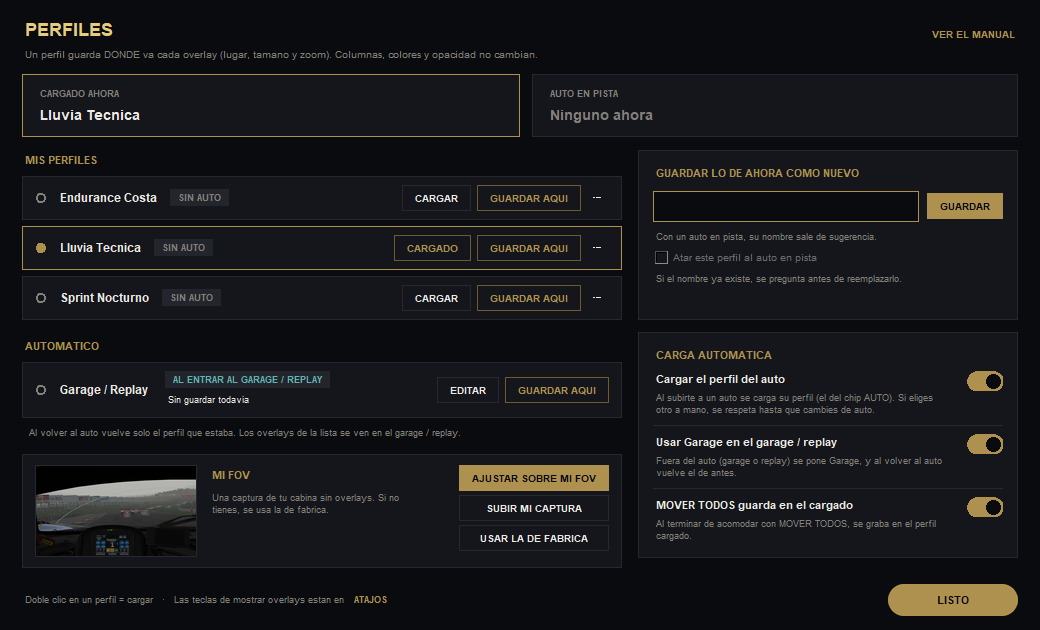
The LAYOUTS screen, with made-up layouts. The picture shows the app in Spanish.
-
1LOADED NOW: the layout that's on.
-
2CAR ON TRACK: the car you're driving and its layout.
-
3MY LAYOUTS: LOAD puts it on. SAVE HERE saves in it where the overlays are now.
-
4The three dots: rename, link to a car, assign a key, Arrange on my FOV, duplicate and delete.
-
5AUTOMATIC: Garage / Replay, the layout that goes on out of the car: in the garage and in the replay (WHEN ENTERING GARAGE / REPLAY).
-
6MY FOV: the screenshot of your cockpit to arrange the overlays without the game.
-
7SAVE THE CURRENT ONE AS NEW: a new layout with what you have now. It can be linked to the car on track.
-
8AUTOMATIC LOADING: each car's layout when you get in, Garage in the garage / replay, and MOVE ALL saving to the loaded one.
-
9READ THE MANUAL: opens this manual.
Where it is
- In the menu, at the bottom: LAYOUTS. With a layout loaded, the button shows its name.
- A layout saves where each overlay goes: position, size and zoom. Columns, colors and opacity don't change.
- It's part of the PRO plan.
Garage / Replay
- Garage / Replay goes on by itself in the garage and in the replay, with Use Garage in the garage / replay, under AUTOMATIC LOADING.
- For iRacing, watching a race is also a replay: there you see the overlays on the Garage list.
- What you save there stays in Garage: it doesn't change your main layout.
- Back in the car, the layout you had comes back.
- Each layout also keeps where the maps go and whether the Spotter Bars are connected or separate.
MY FOV
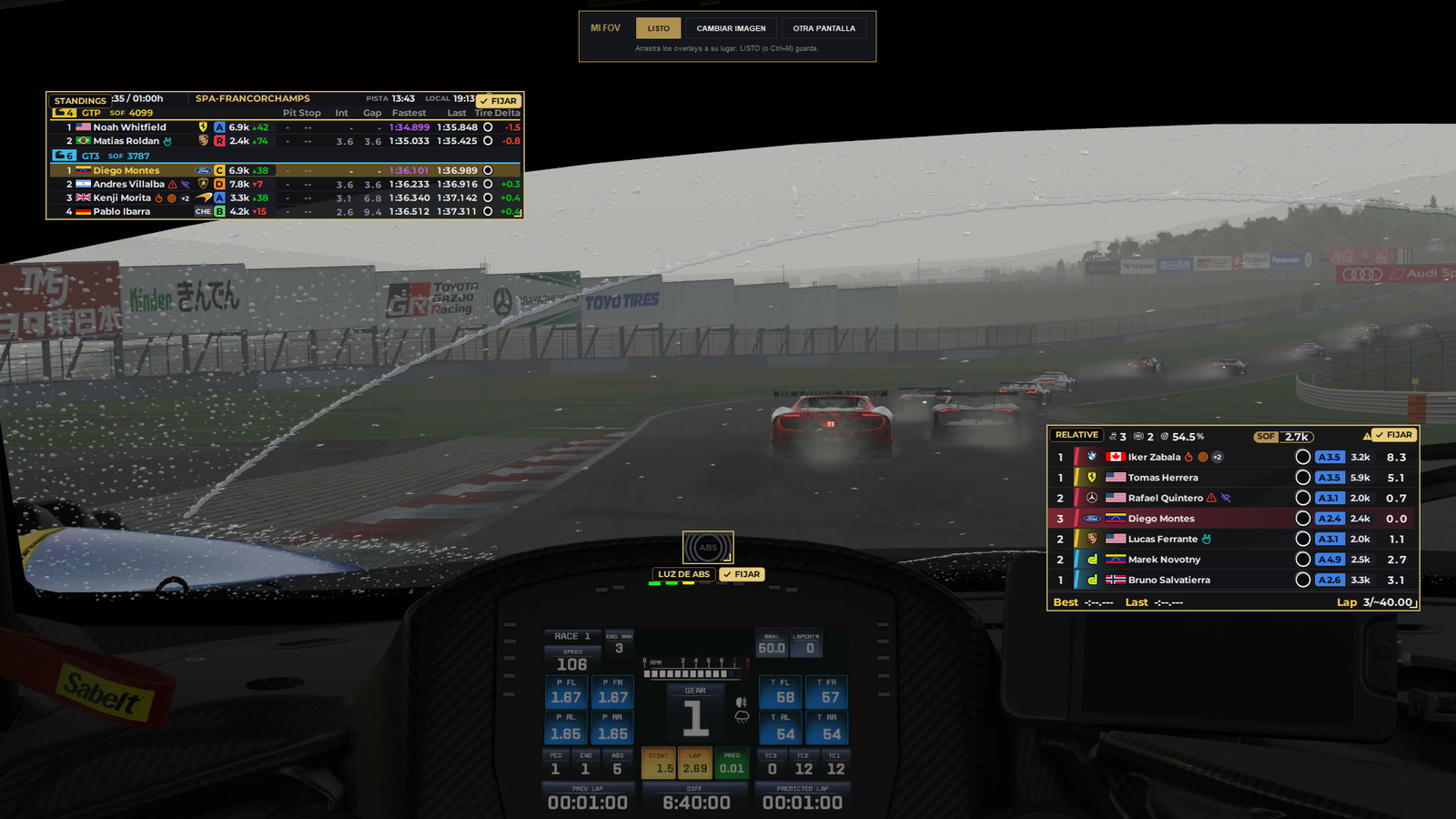
It shows a full-screen cockpit screenshot on your monitor, with your overlays on top, so you can arrange them without opening iRacing.
- ARRANGE ON MY FOV: opens the cockpit. Drag each overlay into place.
- UPLOAD MY SCREENSHOT: uses a screenshot of your own cockpit, without overlays.
- USE THE DEFAULT: goes back to the screenshot that comes with the program.
- What you arrange is saved to the loaded layout. From a layout's three dots, Arrange on my FOV saves it to that layout.
- With iRacing open, arrange them over the game with Ctrl+M.
Arranging on MY FOV, with made-up drivers. The picture shows the app in Spanish.
While you arrange, a small bar shows at the top:
- DONE: saves and finishes. Ctrl+M also finishes.
- CHANGE IMAGE: picks another screenshot.
- OTHER SCREEN: moves the cockpit to another monitor.