PRO
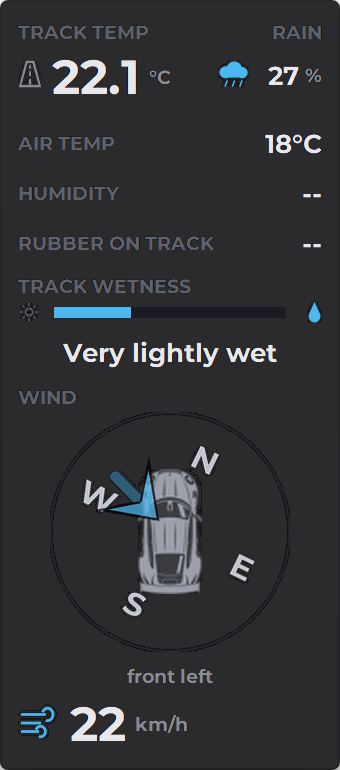
Track temperature, rain, how wet the surface is and which side the wind hits you from, in a single column. A PRO plan overlay of Raptor Racing Overlay.
The Weather Monitor puts in one column what iRacing knows about the weather and almost nobody looks at: track and air temperature, humidity, the rubber on the track, the rain that is falling and how wet the surface is.
At the bottom there is a compass tied to your car: the car stays fixed pointing up and the world turns around it. So the blue arrow doesn't give you a heading you have to translate in your head, but something you get at a glance: the wind is hitting you head-on, from behind or from the side.
It works in km/h and °C or in mph and °F, every block can be turned off, and it only reads iRacing data: it never changes anything in the game.
 1
2
3
4
5
6
7
8
9
1
2
3
4
5
6
7
8
9
Example with sample data: it is raining and the track is starting to get wet. The sample has no humidity or rubber data, so those two lines show --.
- 1TRACK TEMP: the temperature of the track surface, with one decimal.
- 2RAIN: how much rain is falling right now, as a percentage. It shares the line with the track temperature when both are on.
- 3AIR TEMP: the air temperature, in whole degrees.
- 4HUMIDITY: relative humidity, as a percentage.
- 5RUBBER ON TRACK: how much rubber the track has in this session.
- 6TRACK WETNESS: the bar goes from the sun (dry) to the drop (extremely wet), with the name of the state below it.
- 7The blue arrow: the wind. It sits on the side the wind blows from and its tip points at your car.
- 8The car and the compass rose: your car stays fixed pointing up; the letters N, E, S and W turn around it as you steer.
- 9Side and strength: which side the wind hits you from, in words, and its speed below.
Temperatures, humidity and rubber
These are readings you glance at once or twice a session. When iRacing doesn't send a value, the line shows -- instead of making up a number.
Rubber is shown with these words, from least to most: CLEAN, SLIGHT, LOW, M-LOW (medium low), MED, M-HIGH (medium high), HIGH and MAX. CARRY means the track keeps the rubber from the previous session.
- TRACK TEMP
- The temperature of the track surface, in degrees with one decimal. It goes at the top and in big type because it is what decides how the tires work.
- AIR TEMP
- The air temperature, in whole degrees.
- HUMIDITY
- The relative humidity of the air, as a whole percentage.
- RUBBER ON TRACK
- How much rubber the cars have laid down on the track. iRacing reports it per session, so practice, qualifying and the race can each have their own.
Rain and track wetness
RAIN tells you how much rain is falling at this moment, as a whole percentage. TRACK WETNESS tells you how wet the surface is. It pays to look at both: what is falling is one thing and what is on the track is another.
The TRACK WETNESS bar is not a percentage: iRacing has seven states and the bar moves one step for each. With a dry track it is empty; extremely wet, it is full. If iRacing doesn't report the state, -- shows in gray below it, so you don't mistake it for a dry track.
The seven states, from dry to extremely wet:
- Dry: the bar is empty.
- Mostly dry
- Very lightly wet
- Lightly wet
- Moderately wet
- Very wet
- Extremely wet: the bar is full.
The wind compass
Your car is always in the middle, pointing up. The letters N, E, S and W (north, east, south and west) turn around it: when you steer, the rose turns, not the car.
The blue arrow is tied to north: it marks where the wind comes from and turns together with the rose. If you see it move while you drive, it's because you are turning, not because the wind changed. It sits on the side the wind blows from and its tip points at your car.
Below the disc is the side in words, in eight sectors, and at the very bottom the wind speed, in km/h or mph, with no decimals. The overlay's blue is the color of water and wind: the rain, the track wetness and the arrow.
The eight possible sides:
- head-on
- front right
- from the right
- rear right
- from behind
- rear left
- from the left
- front left
Units
iRacing always sends metric. In the settings you choose how to see it. The compass doesn't change with this, because where the wind comes from has no units.
- Match iRacing
- Follows what you picked inside the game.
- km/h and degrees C
- Always kilometers per hour and degrees Celsius.
- mph and degrees F
- Always miles per hour and degrees Fahrenheit, for whoever drives with the game in metric and thinks in miles.
When it shows, and on your phone or in OBS
The overlay only shows while you are driving. In the garage and in replays it hides, unless you tick that it should show there too. While you are arranging it (with its menu open, moving it or with the opacity window) it stays in view for a few seconds.
If you turn blocks off, the overlay rebuilds itself without leaving gaps. Turn off the wind direction and you get a thin strip with the readings above. If you turn everything off, a note reminds you that right-click turns something back on.
With the menu's WIFI CONNECTION on, the Weather Monitor also shows on your phone or tablet, with the same blocks you have turned on and the compass turning. That same page goes into Streaming in OBS along with the other overlays.
Controls and settings
- On the overlay: if you turn on Allow moving the overlay, you drag it wherever you want and resize it by pulling a corner.
- Right-click on the overlay: Units (Match iRacing, km/h and degrees C or mph and degrees F), Overlay size (Bigger, Smaller and 60 to 200%; 75% by default), What to show (one switch for each of the seven blocks), Also show it in the garage, Also show it in replays and when spectating, Allow moving the overlay, Background opacity (opens a small window with two sliders: background and data) and Close the weather monitor.
- In the Raptor Racing Overlay menu, the Weather Monitor settings have three tabs: UNITS (how it is measured), WHAT SHOWS (the overlay blocks) and LOOKS (SIZE, BACKGROUND OPACITY, DATA OPACITY, Allow moving the overlay by dragging it, WHERE IT SHOWS with Garage and Replays and spectating, and SEE IT ON YOUR PHONE). Restore factory settings puts everything back as it came without moving it from its place.
Tips
- Before going out, check TRACK TEMP: it is what decides how the tires work, and it may not be the same in practice and in the race.
- In the rain, read RAIN and TRACK WETNESS together: the first tells you what is falling now, the second how the surface is.
- Look at the compass on long straights, with no rush: knowing whether the wind hits you head-on or from behind helps you understand why you reach a braking point faster or slower.
- If it covers too much track, turn off the wind direction: you get a thin strip that fits anywhere.
- If you turn the opacity way down, the first thing you lose is the wind arrow: check it before you leave it like that.
- If you drive with the game in one system and think in the other, force the units instead of matching iRacing.