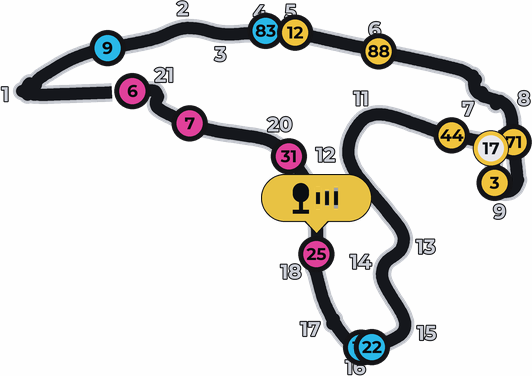
The whole track with every car on it, each in its class color, numbered corners and who is talking on the radio. A PRO plan overlay of Raptor Racing Overlay.
The Track Map draws the track you're racing on and puts every car on it, each at its real spot on the lap. Every car is a dot in its class color with its number inside, and yours is white so you can find it at a glance.
It comes as a full map, with the whole track and an invisible background, so over the game you only see the drawing. If you prefer, a circle that follows you up close, or the lap stretched into a flat bar. It only reads iRacing data: it never changes anything in the game.
 1
2
3
4
5
1
2
3
4
5
Example at Spa-Francorchamps with a made-up three-class race, oriented like in iRacing.
The map in move mode (Ctrl+M), with the rotation knob.
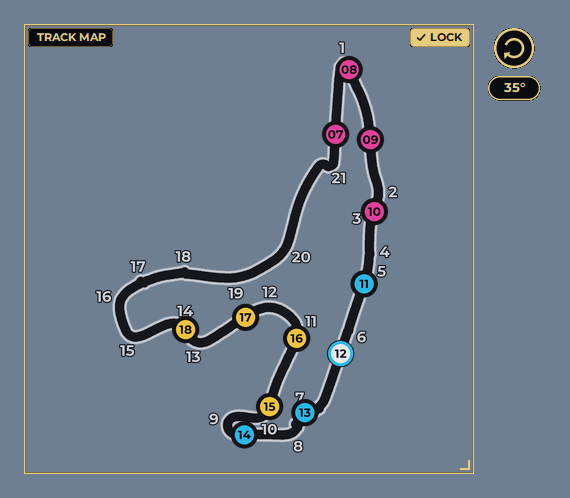
In Full map, the default, the overlay is a square with the whole track inside. The square is the same size on every track, so your screen layout doesn't shift when you change sessions.
In Close-up zone, a circle that follows you, with the track around you up close and the cars near you. In CLOSE-UP ZONE you choose how much track fits (150, 200, 300, 400 or 600 m from side to side; 200 by default) and whether it Turns with the car, with up always where you are going, or stays Fixed, like the full map.
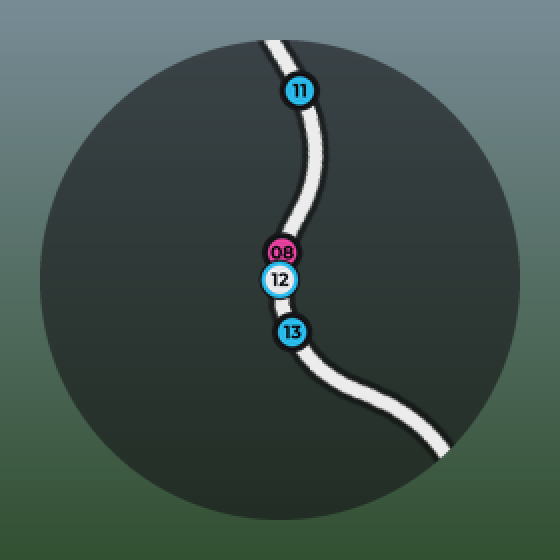
Close-up zone at Le Mans, at 600 m and turning with the car. The white dot is you.
In Flat map the lap is stretched into a bar. The finish line is the white stripe on the left edge and the whole bar is one lap, so the distance between two dots is the real distance on track: at a glance you see where the pack is and who is running alone. The bar length is set in the menu.
If you pick the full map on a track that has no drawing yet, the cars show on the bar with the notice Learning the track until the drawing is ready.
Each mode keeps its own background: the full map comes with the background at 0 (you only see the track and the cars), the bar with its dark background at 80%, and the close-up zone with its dark circle at 60%.
When you watch a race as a spectator or a replay (with that box checked), the white dot is the car the camera is following.
The map numbers the corners by itself, from the finish line in the race direction, using the number of corners iRacing says the track has. On tracks that haven't been reviewed, the numbering can be off by one from the official one.
On reviewed tracks, like Spa-Francorchamps, each corner also has its name. A famous corner that barely turns seen from above, like Eau Rouge, carries only its name. Right-click, Corners, to choose what is written:
By default each track appears As in iRacing, with the same orientation as the in-game map, so you don't have to rotate anything. The overlay works it out from your car's heading: on a track it doesn't know yet it measures it by itself while you drive, and until then it shows north up.
With the knob: put the overlay in move mode (Ctrl+M or MOVE in its settings) and a gold knob appears next to the top corner of the map. Drag it around the map and the map rotates with it, all 360 degrees and as many turns as you want: 5 degrees at a time, or 1 at a time while you hold Shift. The degrees are shown below it, and a double-click on the knob sets it back to how iRacing shows it.
You can also right-click the map and open Rotate the map: 90 degrees clockwise, 15 degrees clockwise or counterclockwise, As in iRacing (forgets your rotation) or North up. In the menu, the ROTATION slider rotates the last track you drove 1 degree at a time; if you haven't driven any yet, it rotates the preview track.
Each track keeps its own rotation: next time you come back, it looks the way you left it.
In the full map, each track remembers where the map goes, its size and its rotation. If at Spa you put it top right and at Road Atlanta at the bottom and bigger, when you change tracks the map moves by itself to where you left it on that track. A new track leaves it where it is, and from there it is saved for that track.
That is also saved in your profile: when you save it (the SAVE button next to PROFILES does it in one click), the profile takes the spot of each track and its rotations, and applying it brings them back. In Flat map the bar is the same on every track.
iRacing doesn't say live where each car is on the map, only how far along the lap it is. So the track drawing comes from elsewhere, and the overlay uses the most accurate one it has, in this order:
In the menu, YOUR ICON and then CHOOSE IMAGE puts your logo, your helmet or your photo in place of your white dot. It has to be a PNG or a JPG.
An image with a transparent background, like a helmet or a logo, shows with its own shape, whole and undistorted. A photo is cropped round. Either way it has no color border.
A square image of 256 by 256 pixels looks best. Its size is set with YOUR ICON SIZE, from 100% to 200% of your dot, but it never gets taller than the bar, so nothing moves out of place.
The image is copied into the program's folder, so it stays even if you delete or move the original. REMOVE IT brings back the white dot.