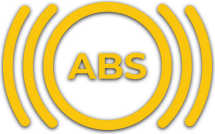
The dashboard ABS warning light, on your screen: it lights up when ABS actually kicks in, so you know if you braked past the limit. A GRATIS (free) plan overlay of Raptor Racing Overlay.
In a real car you feel ABS through your foot: the pedal vibrates when the system releases the brake on a wheel that locked. In the sim that vibration rarely reaches you, and braking past the limit feels just like braking right at it. The ABS Light puts a picture on that: it lights up while ABS is working and goes out when it stops.
It's a standalone icon, with no panel, no frame and no text. You place it where your eyes fall when braking, and the rest of the time it takes up nothing: the window is transparent. It only reads iRacing data: it never changes anything in your car.
123
The light on, in the factory color (Gold).
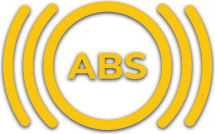
1ABS: the warning light, like the one on the dashboard. It lights up in the color you pick (Gold by default) while ABS is working.
2The ring and the arcs: part of the same drawing, they all light up and go out together. What matters isn't the shape but how long it stays lit.
3Around it: there's nothing. The window is transparent and clicks go right through; to right-click you have to hit the drawing.
The light lit and unlit
The light has only two states. In the pictures it's enlarged so you can see the drawing; while you drive, most of the time there's nothing on screen.
LitThis is how it looks while ABS is working, in the factory color, Gold. In the settings you pick the color (Gold, Red or White) and how it blinks: In sync with the ABS copies every pulse as it comes and flickers fast, Soft blink merges the separate pulses into a calmer blink, and Steady light stays on the whole time ABS is working. With any of the three, what the light tells you is how long it lasts: a flash at the braking point is ABS doing its job; lit halfway through the corner, you overdid the braking.
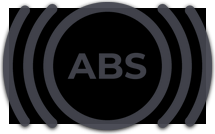
Unlit, in grayThe light when ABS isn't working, like a bulb that's there but not lit. It shows while you're placing it (with MOVE or Ctrl+S), while its menu is open, or all the time if you turn on “Keep it visible, unlit, when idle”. Without that option, when ABS isn't working there's nothing on screen. In a car without ABS and with that option on, you'll see it in gray the whole session.
How it knows ABS kicked in
iRacing reports, at every moment, whether ABS is lowering the brake pressure on any wheel. The light reads that report on every frame the game sends, without skipping any, and lights up when it says yes.
It doesn't average or guess anything: what you see is what iRacing reports. And it never writes anything to the game.
What the light tells you
A short blink at the braking point: ABS doing its job the way it should.
A light that stays on halfway through the corner: you overdid the braking. You're losing braking distance.
The icon in gray: the light off, like a bulb that's there but not lit. It shows while you're placing it, with its menu open, or always if you choose to keep it visible.
Nothing: normal while driving. With no ABS working, it doesn't show.
The three blink modes
ABS releases and grabs the brake many times per second. You choose how the light follows that signal:
In sync with the ABS
The default. After each pulse it stays lit for just two frames, so it copies the signal as it comes: it blinks at the real pace of the ABS.
Soft blink
It stays lit for a tenth of a second after each pulse. Single pulses merge and the blinking becomes calmer to look at.
Steady light
It stays lit for a quarter of a second, longer than ABS takes between pulses. It comes on when ABS starts working and goes out when it stops, like the warning light of a road car.
Cars without ABS
If the car has no ABS, iRacing never reports it working and the light simply never comes on. You don't have to tell it which car you drive or turn it off: it works that out on its own.
If you turned on "Keep it visible, unlit, when idle", in those cars you'll see it in gray for the whole session.
When it shows
By default, only while driving on track. In the garage and in replays it hides, unless you tick it to show there too. With iRacing closed or paused it doesn't show either.
To see it off track, press Ctrl+S in the Raptor Racing Overlay menu: the open overlays come into view, and another press puts them back to normal. To place it, "Test the light" makes it blink on its own for 5 seconds.
On your phone and in OBS
The same light can be seen on your phone or tablet through the WiFi connection, and in OBS through the Broadcast. It's the same drawing, with the same color, the same opacity and the same blinking as on your screen.
Off track, the phone shows "This overlay shows up on its own when it is needed." and in OBS it stays blank. The WiFi connection and the Broadcast are PRO plan features.
Controls and settings
On the overlay: with "Allow moving the overlay" turned on you drag it wherever you want. With the MOVE button in the menu you can also make it bigger or smaller by pulling a corner or a side, between 40% and 60%.
Right-click on the overlay: Blinking, Light color (Gold, Red or White), Overlay size (Bigger, Smaller or 40% to 60%), Keep it visible, unlit, when idle, Also show it in the garage, Also show it in replays, Allow moving the overlay, Light opacity, Test the light (5 s) and Close the ABS light. Since the light only shows when it's working, first bring it into view with MOVE or Ctrl+S.
In the Raptor Racing Overlay menu, the ABS Light settings fit on a single page, with no tabs: HOW IT BLINKS, COLOR, WHEN IT'S IDLE (keep it visible, unlit, instead of hiding it), SIZE, LIGHT OPACITY (the icon's own), allow moving it by dragging, WHERE IT SHOWS (garage and replays) and SEE IT ON YOUR PHONE. At the bottom is "Restore factory settings", which doesn't move the light from where you put it.
Tips
Use "Test the light" to place it where your eyes fall when braking, for example above the wheel, without having to brake in a session.
If the light stays on for a long time in a braking zone, you braked past the limit: try pressing a bit less hard at that spot.
If the gold gets lost against your livery or your dashboard, switch it to Red or White.
If blinking in sync with the ABS tires your eyes, try Soft blink or Steady light.
If you want it always in view, like on a car's dashboard, turn on "Keep it visible, unlit, when idle".

 1
2
3
1
2
3