
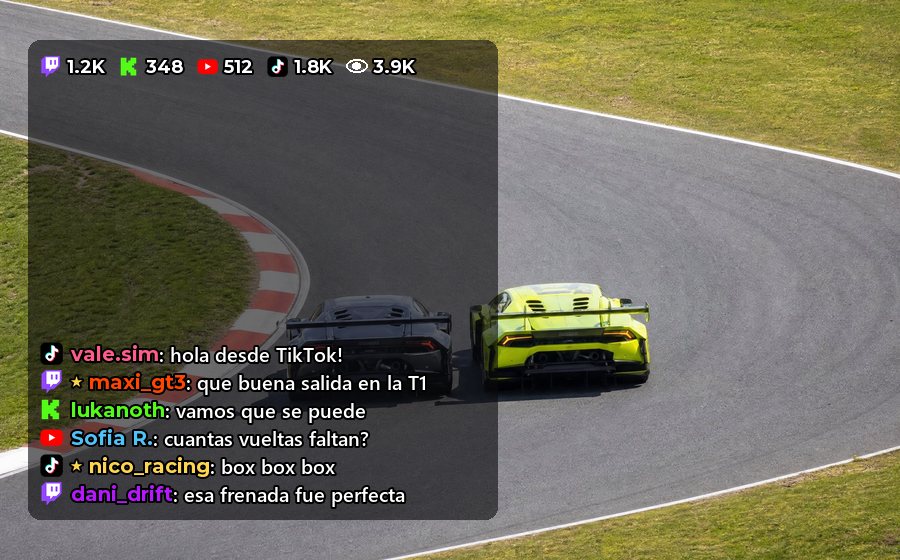
Your Twitch, Kick, YouTube and TikTok stream chat, on top of the game, like any other overlay. And on your phone or tablet too. An overlay of the PRO plan of Raptor Racing Overlay.
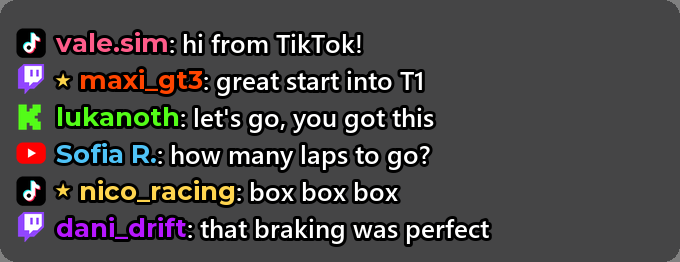
You read your chat without leaving iRacing or looking at another screen: each message with its platform icon, the name in its color, emotes and full-color emojis.
It's the same STREAM CHAT as in Streaming (EXTRAS tab): the same channels and the same filters (subscribers only, no bots, no commands), the same dark background and the same time to remove old messages. You set it up once and it works for OBS, for your screen and for your phone.
To read the chat, the program connects to Twitch, Kick, YouTube and TikTok only to read, with no account and no key. It never writes in your chat, and it changes nothing in iRacing.
 1
2
3
4
5
1
2
3
4
5
The chat over the game, with Twitch, Kick, YouTube and TikTok messages. Messages and names are examples.
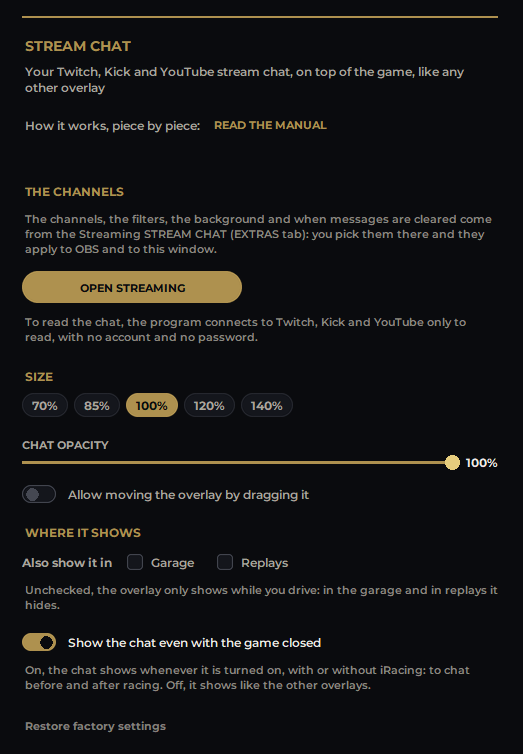
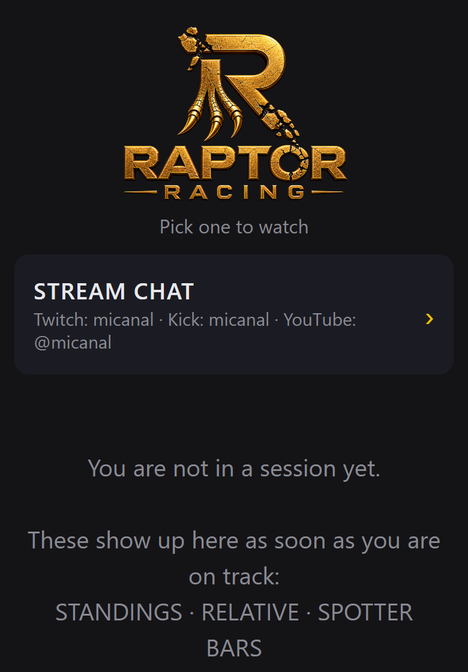
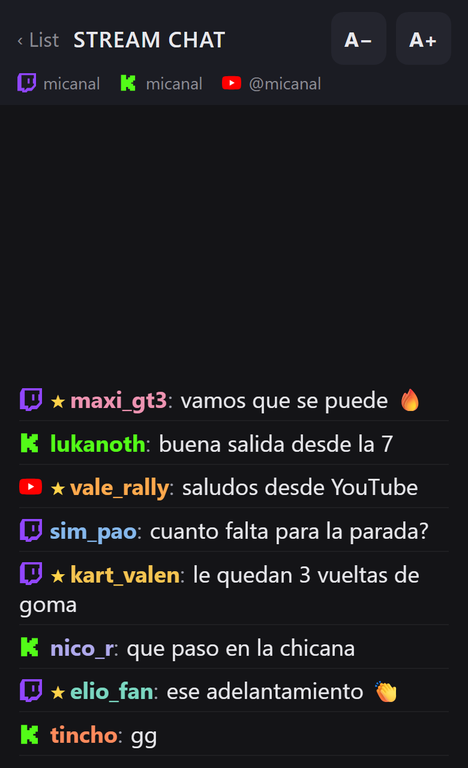
The settings screen in the menu and the chat on your phone.
They're typed in Streaming, EXTRAS tab, STREAM CHAT block: four boxes, Twitch, Kick, YouTube and TikTok (the ones you use). For Twitch and Kick, the channel name; for YouTube, your @channel or the stream link; for TikTok, your @username. No account, no key and nothing to link. See the Streaming manual.
It also takes from there: Show the platform icon, Subscribers only (members on YouTube), Hide bot messages, Hide commands (the ones starting with !), where new messages appear, REMOVE OLD MESSAGES (after X seconds; at zero none are removed) and DARK BACKGROUND. A change there reaches the chat within a second, without cutting it.
The chat has its own font size: right-click > Font size, or in its settings, SIZE section. The FONT SIZE in the EXTRAS tab is for OBS.
SOUND ON EVERY MESSAGE is also at the bottom of this settings screen: it's the same one as in the EXTRAS tab, so changing it on one side changes it on the other. With WAIT BETWEEN SOUNDS (15 s by default) it stays quiet for that long after a sound: a message sounds once. Chat commands are set up in the EXTRAS tab; their replies show here too.
Above the chat, a row shows how many are watching each stream: the Twitch, Kick, YouTube or TikTok logo with its number, and the eye with the total. It shows in OBS, over the game and on your phone.
Turn it off in the chat settings, with Show the viewers of each stream on top, or in the Streaming EXTRAS tab: it's the same setting.
Show the chat even with the game closed is on by default: the chat shows whenever it's turned on, with or without iRacing, in the garage and in replays. It's for chatting before and after racing. With the game closed, the menu opens it anyway.
Off, it behaves like the other overlays: it shows while you drive, and in the garage and replays only if you tick them in WHERE IT SHOWS. It's also in the right-click menu: Also show it with the game closed.
The same chat, next to your rig. In the menu open the WIFI CONNECTION and scan the QR code, the same one as for the overlays. In the list tap Stream chat: it appears when at least one channel is set in the Streaming EXTRAS tab.
It works with the game closed. The page fits your phone or tablet, upright or sideways. Change the text size with A− and A+, and the phone remembers it.
It uses the same channels and filters as OBS and the chat over the game. New messages always come in at the bottom; to read older ones, scroll up with your finger, and Jump to latest takes you back to the end.
In the YouTube box put your @channel (for example, @micanal) or your stream link. Messages show up when the stream is live. If it hasn't started yet, the chat says so and checks again by itself every minute: you don't have to touch anything when you go live.
No account, no key and nothing to link: the program reads your stream's public chat, just as anyone watching sees it. Never paste your password or your YouTube Studio stream key there: they aren't used, and you shouldn't give them to anyone.
Good to know: YouTube messages arrive a few seconds late, Super Chats aren't shown, and if a message is deleted on YouTube, it isn't removed here.
In the TikTok box put your @username. The comments and viewers of your TikTok LIVE come in: over the game, in OBS and on your phone.
If you're not live yet, the chat says so and it shows up on its own when the stream starts. No account and no key: never paste your password there.