Which car is beside you and exactly where, in two bars next to your mirror: the middle of the bar is you. A GRATIS (free) plan overlay of Raptor Racing Overlay.
Two bars, one on each side of iRacing's virtual mirror. When a car pulls alongside, a colored block shows up in the bar on that side: higher if it's ahead, lower if it's behind. At a glance you know whether the other car is level with your door or already gone, which is what decides whether you can change lines.
The bars are dark glass: at 100% opacity they look solid, and as you lower the opacity they turn transparent and you can see the track through them. With a car close by, the border of that bar lights up in the rival's color. When it is right alongside, door to door (within 2.2 m), the whole bar turns red and that block goes red, whatever color you picked: that's when you must not change lines.
It only reads data from the sim and never changes anything.
123456
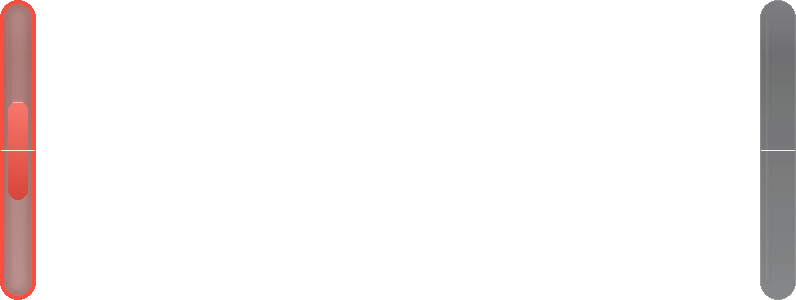
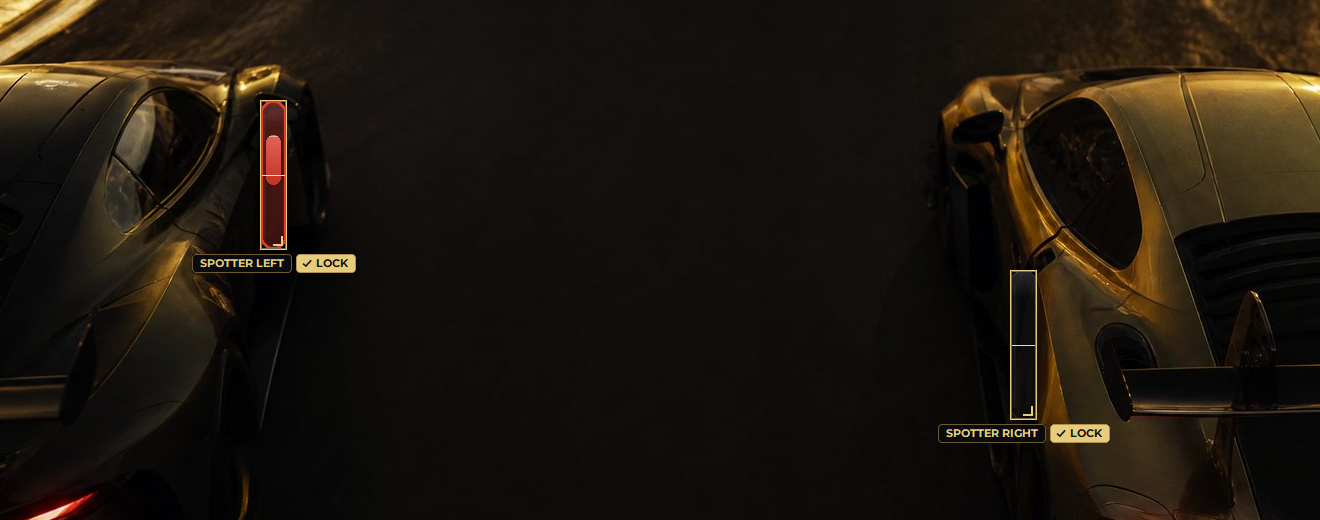
Example: a car on your left, right alongside; nobody on the right.
1The left bar: shows the car on your left. The right bar does the same on the other side.
2The block: the rival. It moves up if the car is ahead and down if it's behind. In the photo it's right alongside, so it's red.
3The middle line: that's you. It's drawn on top of the block, so you always see how far ahead or behind they are.
4The border that lights up: with someone alongside, the border of that bar takes the rival's color. Right alongside, in red, with the glass tinted.
5The right bar, empty: when there's someone on one side, both bars show, and the one on the clear side has no block.
6The gap in the middle: that's where your mirror goes. It's transparent and lets clicks through, so it doesn't cover anything.
The bars in each situation
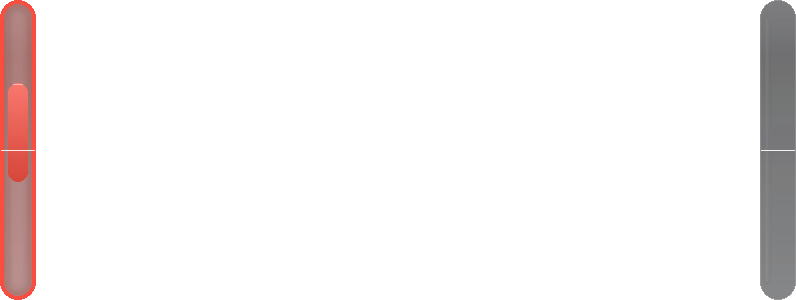
These are the four situations you'll see on track. The light line in the middle of each bar is you, and the block is the other car: higher if it's ahead, lower if it's behind. Close by, in the chosen color (orange by default); right alongside, in red, with the bar tinted. While someone is alongside, both bars show, and the one on the clear side stays empty.
A car on your left, alongsideThe block is in the left bar, crossed by the middle line: the other car is wheel to wheel with you, so the bar turns red. The right bar is empty: you have room on that side. Don't close the line to the left until the block leaves through one end.
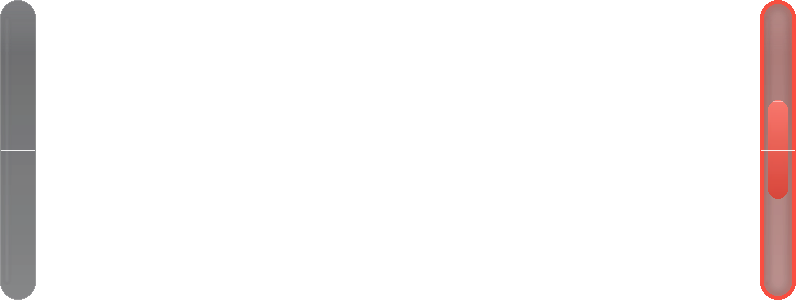
A car on your right, alongsideThe same on the other side: the right bar in red, with the block level with you, and the left bar empty. If you're pulling ahead, the block moves down, turns orange again and leaves through the bottom end; if it's passing you, it moves up and leaves through the top.
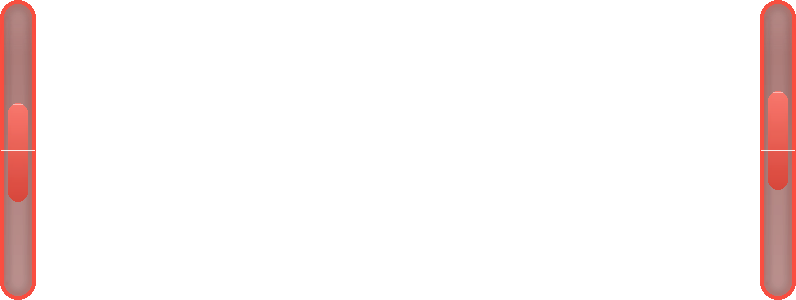
Cars on both sidesBoth bars in red, each with its block level with you: you're in the middle. Hold your line until one of them leaves its bar.
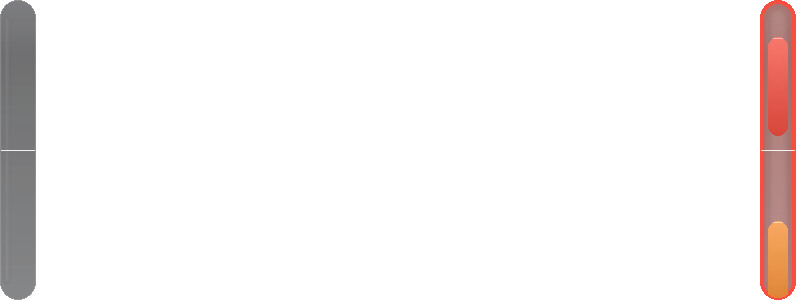
Two cars on your rightWhen iRacing calls two cars on the same side, that bar shows two blocks. The one ahead is still alongside, in red; the one behind, in orange, is already leaving through the bottom end.
How to read a bar
Up is ahead and down is behind, like in a mirror. The block takes up a third of the bar's height and is placed by its center.
Block above the middle line: the other car is ahead of you. The part of the block above the line is how much they're ahead.
Block crossed by the line: you're side by side, wheel to wheel.
Block below the line: you're ahead of them.
When they show up and when they go
When you're driving alone, the bars aren't visible: the whole window is transparent. They show up as soon as iRacing's spotter says someone is beside you, and go away when it stops saying so.
When the other car passes you, the block doesn't vanish all at once in the middle of the bar: it follows that same car until it has fully left through the end.
By default they only show while you drive. In the garage and in replays they hide, unless you turn those options on. When you open the overlay they show for 8 seconds, even with the game closed, so you know where they are.
Which cars count
The one closest to you on track, on the side iRacing reports. A car a lap down but right beside you counts too.
Cars on pit lane, the safety car and cars that aren't on track don't count.
If iRacing reports two cars on the same side, that bar shows two blocks.
Lining them up with your mirror
The bars sit against the ends of the virtual mirror, which is where you already look when in doubt. Each bar moves on its own, anywhere or to another monitor.
In move mode (Ctrl+M), each bar has its own frame, its name (SPOTTER LEFT or SPOTTER RIGHT) and its LOCK: drag each one into place.
Put the bars together, in the right click, places them side by side again.
The bars in move modeEach with its own frame and LOCK.
To line them up without waiting for someone to pass you, use Test the bars in the right click: for 10 seconds a test car goes past, first on the left and then on the right, from behind to ahead.
GAP BETWEEN THE BARS
A shortcut: puts the right bar this far from the left one, at the same height. From 60 to 2400 pixels; 724 by default.
SIZE
Makes the bars bigger or smaller without moving the gap: 70, 85, 100, 120 or 150%, or in 5% steps with Bigger and Smaller.
BAR THICKNESS
Thin, Normal or Wide (default).
THE RIVAL'S COLOR
Orange (default), Red or White. Right alongside, the block is always red.
BAR OPACITY
At 100% they look solid; lower, more and more transparent. 95% by default.
On your phone or tablet
With the menu's WIFI CONNECTION turned on, the bars also show on your phone or tablet: the two bars go to the edges of the screen and show the same as on your monitor. When nobody is beside you, the page says the overlay shows up on its own when it's needed.
With the PRO plan, in the OBS Broadcast each bar has its own box, left and right, placed separately in the editor.
Controls and settings
On the overlay: if you turn on Allow moving the overlay, you drag each bar on its own.
Right-click on the overlay: Rival color, Bar thickness, Overlay size (Bigger, Smaller and 70 to 150%), Keep them visible and empty when nobody is beside you, Also show it in the garage, Also show it in replays, Allow moving the overlay, Bar opacity (95% by default), Test the bars (10 s), Put the bars together and Close the spotter bars.
In the Raptor Racing Overlay menu, the Spotter Bars settings are on a single page, with no tabs: THE RIVAL'S COLOR, BAR THICKNESS, SIZE, GAP BETWEEN THE BARS, WHEN NOBODY IS BESIDE YOU (keep them visible and empty instead of hiding them), BAR OPACITY, Allow moving the overlay by dragging it, WHERE IT SHOWS (Garage and Replays) and SEE IT ON YOUR PHONE. Restore factory settings puts everything back as it came without moving it.
Tips
Before your first race, open Test the bars and put each bar at one end of your mirror, with Ctrl+M or with the gap.
As long as there's a block in a bar, there's a car on that side: don't close the line that way.
If the orange gets lost against the track, try Red or White.
If you'd rather always have them in view so you don't have to look for them, turn on Keep them visible and empty when nobody is beside you.
If they cover too much, choose Thin or lower the opacity.

 1
2
3
4
5
6
1
2
3
4
5
6