
Thank you for supporting the project. Here is your download and the steps to get it running in a few minutes.
Windows 10 or 11, 64-bit. The file is about 88 MB. The installer is called RaptorRacing-Overlay-Setup and ends in .exe.
Windows will raise two objections before letting you install. Both are for the same reason and neither means there is anything wrong with the file: Windows distrusts any program that few people have downloaded yet, and ours is new. Below is how to get past them, with screenshots of what you will see.
It does not always happen. If it does, the file shows up in the downloads list marked in red, with something like "not commonly downloaded" or "may be dangerous".
This is the one that stops almost everyone. When you open the installer, a blue or purple dialog appears saying "Windows protected your PC", and the only button visible is Don't run. It looks like there is no way out:
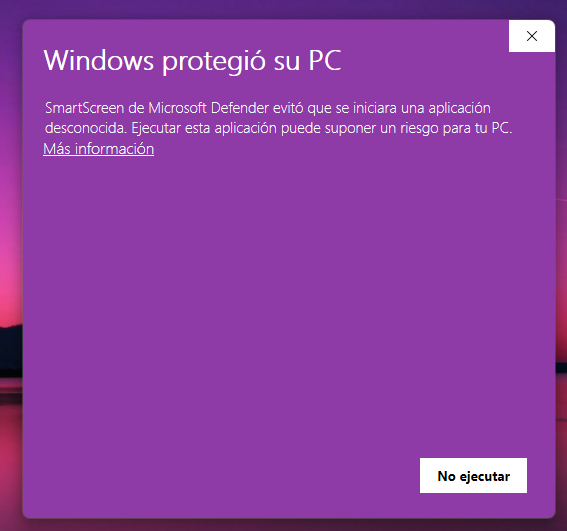
The way out is the small link: click More info. Only then does the Run anyway button appear, along with the file name and the line Unknown publisher. That button does not appear until you click the link: if you cannot see it, that is exactly why.
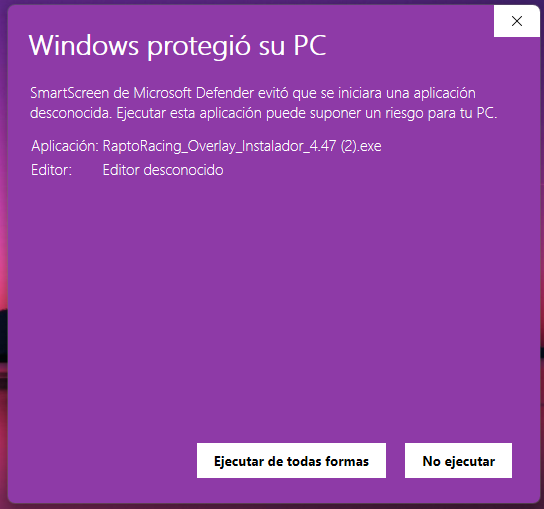
The file name shown in the dialog changes with each version: the screenshot shows an older one.
"Unknown publisher" means Windows does not yet recognize who publishes the program: it is new and few people have downloaded it. It changes nothing about what the overlay does, and it happens only once —the first time—: after that Windows stops asking.
This happens with some antivirus programs when software is new and rarely downloaded. The file does not disappear: it stays in quarantine and can be recovered.
With Windows Antivirus (Microsoft Defender):
With other antivirus programs the path has a different name —quarantine, blocked items, history— but the idea is the same: restore the file. If you cannot find it, write to [email protected] and we will walk you through it.
Write to [email protected] with your key and we will help you. Keep the purchase email: the key is in there.
Want to check that the file is ours? Write to us and we will send you its verification number (SHA-256) so you can compare it with the one you downloaded.